Overview
Use holiday schemes when your team observes public holidays that should reduce available work capacity. This is especially useful for distributed teams across multiple countries, where each region needs its own set of holidays.
Holiday schemes (also called holiday calendars) let you define which days are non-working holidays for your team. On a holiday, a team member's available capacity drops to zero, and the day appears as a visual indicator on the scheduler. Each user can belong to one holiday calendar at a time.
Capacity is the number of working hours a person is available per day, as set in their capacity scheme. Holidays override that value and set it to zero for the affected day.
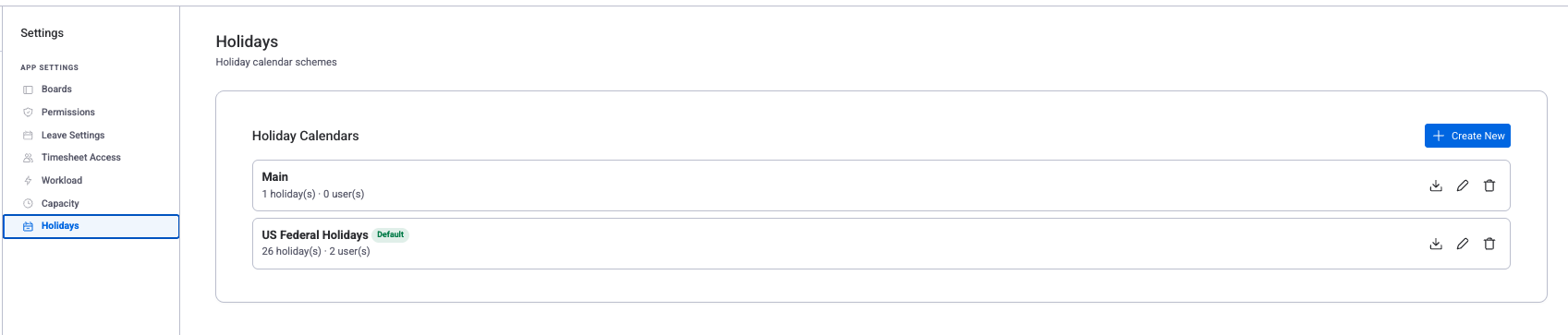
You manage holiday calendars at Workspace View > Settings > Holiday Calendars.
Creating a Holiday Calendar
To create a new holiday calendar:
- Go to Settings > Holiday Calendars.
- Click "New Calendar".
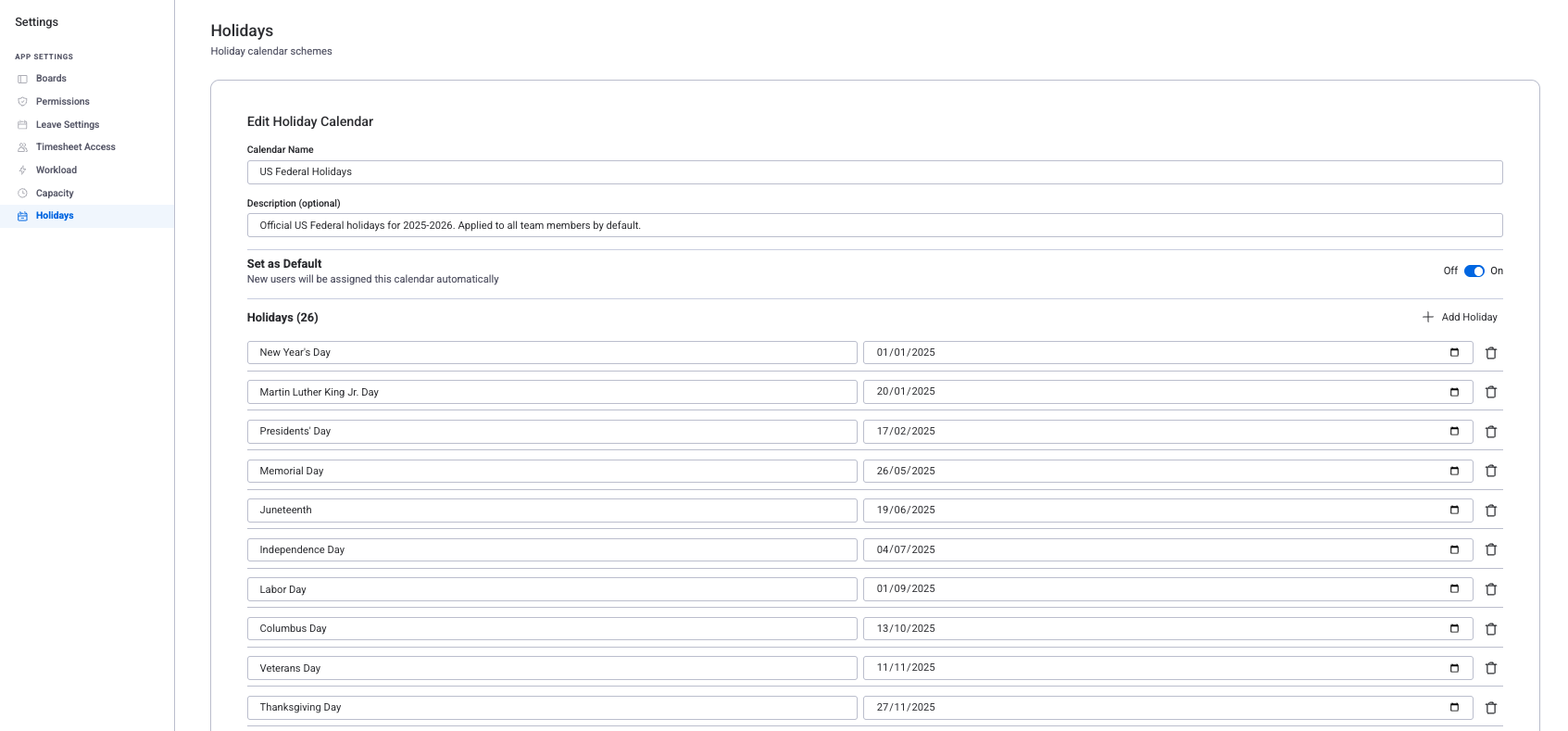
- Enter a name for the calendar (for example, "US Federal Holidays").
- Optionally add a description and choose a badge color so the calendar is easy to identify.
- Add holidays by importing them from a country list or by entering them manually.
- Assign users to this calendar.
Importing Country-Specific Holidays
WorkHub includes built-in holiday lists for many countries. Importing saves time and reduces the risk of missing a public holiday.
- Open a holiday calendar (or create a new one).
- Click "Import Holidays".
- Select the country from the dropdown list.
- Choose the year you want to import.
- Review the list and confirm. The holidays are added to the calendar immediately.
Customizing Holidays
Whether you imported holidays or started from scratch, you can adjust the calendar at any time.
Adding a holiday
- Open the calendar and click "Add Holiday".
- Enter the holiday name and pick a date.
- Choose whether the holiday is fixed (same date every year, such as January 1) or floating (date changes each year, such as Thanksgiving).
- Click Save.
Removing a holiday
Click the delete icon next to any holiday in the list. The change takes effect right away in all capacity calculations for users assigned to this calendar.
Editing a holiday
Click on a holiday entry to update its name, date, or type. This is useful when a floating holiday's date changes for the upcoming year.
Fixed holidays repeat on the same date every year automatically. Floating holidays have dates that change annually, so you need to update them each year. WorkHub sends a reminder when floating holidays need new dates for the upcoming year.
Assigning Users to Calendars
A holiday calendar only affects capacity once users are assigned to it.
- Each user can be assigned to one holiday calendar.
- Use the user picker inside the calendar to assign people individually or in bulk.
- Changes apply immediately to all workload and capacity calculations.
- Users who are not assigned to any calendar use the default calendar (if one is set).
Setting a Default Calendar
You can mark one holiday calendar as the default. The default calendar applies automatically to every user in the account, including anyone who has not been explicitly assigned to a different calendar.
- When a default calendar is set, all unassigned users inherit its holidays.
- Users who are explicitly assigned to a different calendar use that calendar instead.
- If no default is set, unassigned users have no holidays applied to their capacity.
How Holidays Reduce Capacity
When a day is marked as a holiday in a user's assigned calendar, their available capacity for that day is set to 0 hours. This affects several parts of WorkHub:
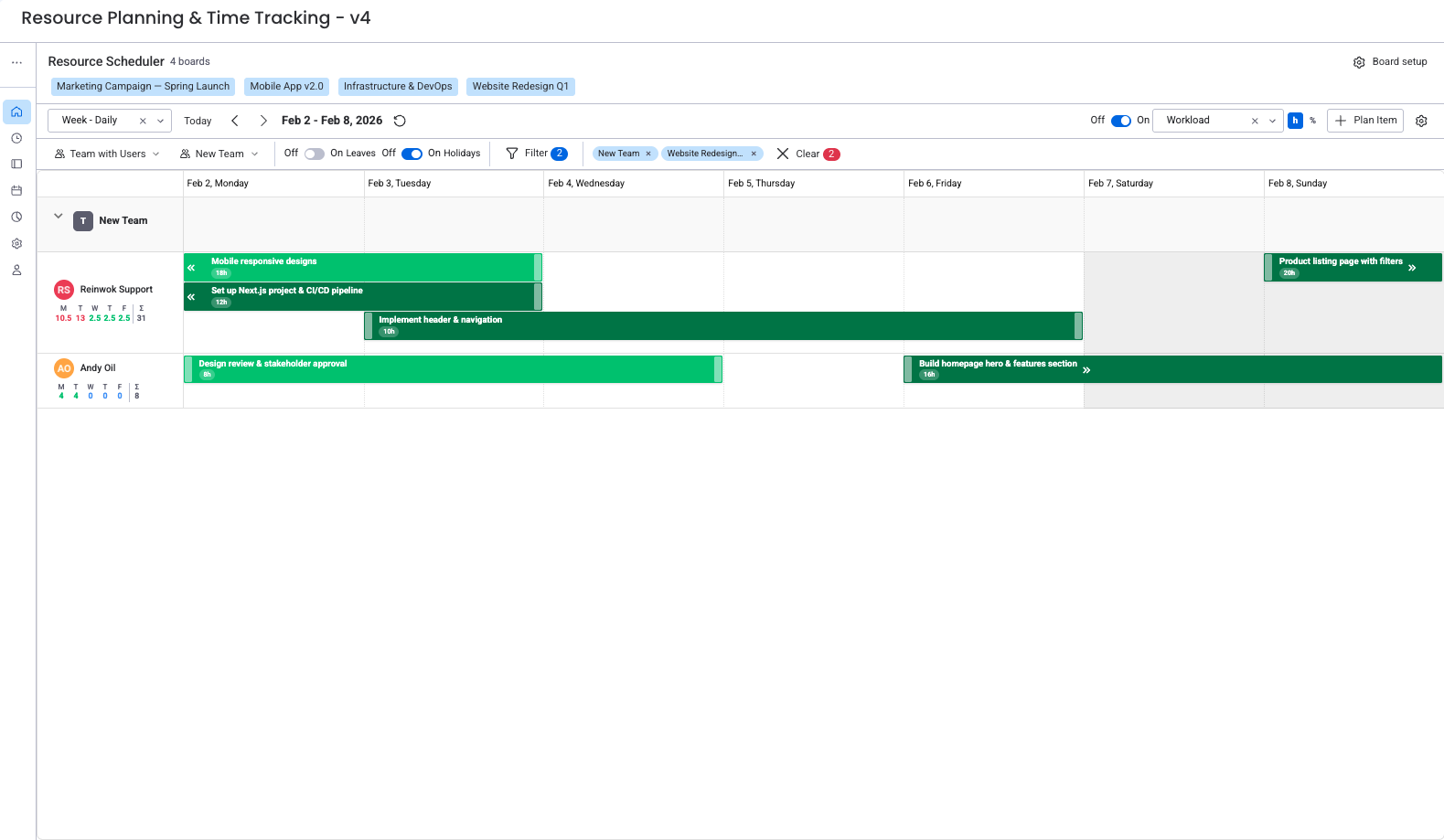
- Resource Scheduler — Holiday days show colored indicators on the date header. Hovering over an indicator displays the holiday name.
- Workload view — The capacity bar for that day reflects zero available hours. Any tasks scheduled on a holiday push the user into over-allocation.
- Capacity calculations — Weekly and monthly totals automatically subtract holiday hours, giving you a realistic picture of available effort.
Related Pages
- Capacity Schemes — Define daily and weekly working hours for your team.
- Workload Management — See how holidays, capacity, and task assignments come together in the workload view.
- Settings — Access holiday calendars and other workspace-level configuration.