
Set up capacity schemes when your team members work different hours. The default scheme assumes 8 hours per day, Monday through Friday. Create custom schemes for part-time employees, contractors, compressed work weeks (for example, four 10-hour days), or any schedule that differs from the standard.
What Are Capacity Schemes
A capacity scheme defines how many hours each person is available to work on each day of the week. The scheme stores seven values — one per day (Monday through Sunday) — each between 0 and 24 hours. WorkHub uses this data to:
- Calculate workload utilization (scheduled hours vs available capacity)
- Color-code capacity bars on the scheduler (green, yellow, red)
- Mark non-working days (0-hour days) as greyed-out on the calendar
- Factor into reports like Utilization Forecast and Planned vs Actual
Every user has exactly one effective capacity scheme, resolved in this priority order:
- Direct assignment — if the user is explicitly assigned to a scheme, that scheme is used.
- Account default scheme — if no direct assignment exists, the scheme marked as "default" applies.
- System fallback — if no default scheme is set (rare), the system uses 8h Mon–Fri.
Manage capacity schemes at Workspace View > Settings > Work Capacity Schemes. Only Admins and App Admins can create, edit, or assign schemes.
Default Scheme
The default scheme represents a standard full-time work week. It is pre-configured with the following hours:
| Day | Hours |
|---|---|
| Monday | 8h |
| Tuesday | 8h |
| Wednesday | 8h |
| Thursday | 8h |
| Friday | 8h |
| Saturday | 0h |
| Sunday | 0h |
Total: 40 hours per week.
You cannot delete the default scheme, but you can edit it. If you change the default scheme, all users without a custom assignment will immediately reflect the updated hours.
Editing the default scheme without realizing it affects everyone. For example, if you reduce the default from 8 hours per day to 6 hours per day, every user without a custom scheme will show reduced capacity across the scheduler. If only certain people need different hours, create a custom scheme instead.
Creating Custom Schemes
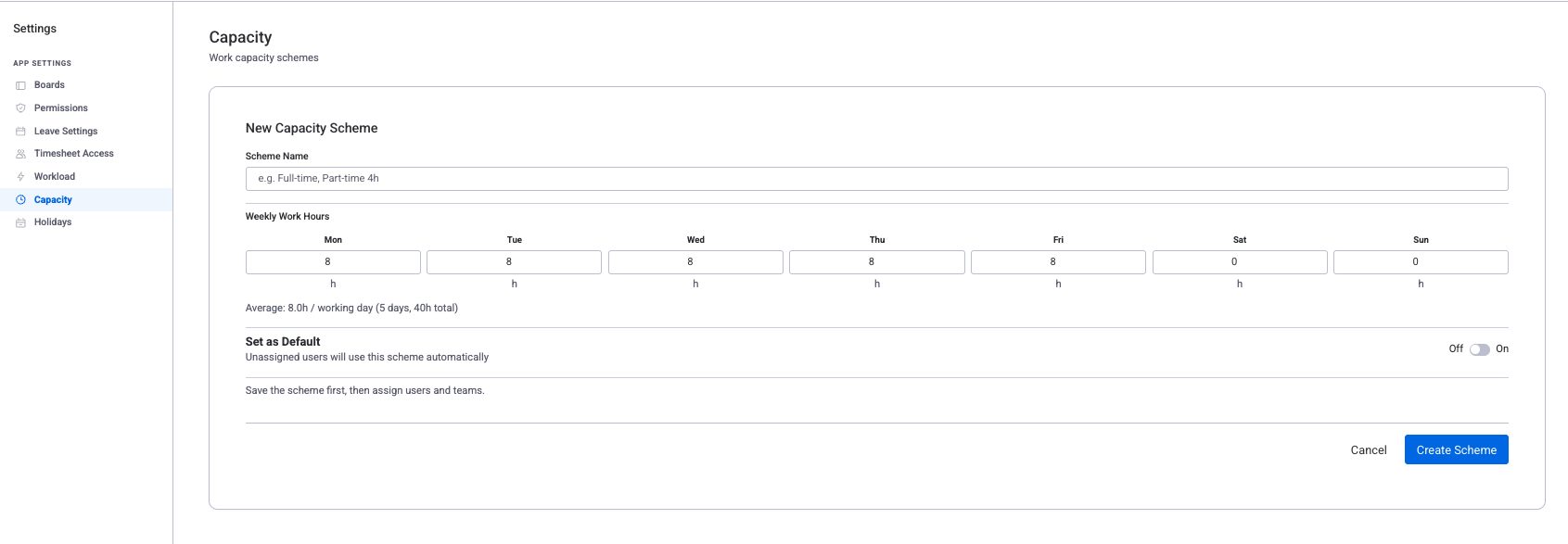
Custom schemes let you define different working hours for different groups of people. To create one:
- Go to Settings > Work Capacity Schemes.
- Click "New Scheme".
- Enter a clear name (for example, "Part-Time 4h" or "4-Day Work Week").
- Set the number of working hours for each day of the week using the per-day input fields. Set a day to 0 hours to mark it as a non-working day.
- Click Save.
Example Schemes
| Scheme Name | Mon | Tue | Wed | Thu | Fri | Sat | Sun | Total |
|---|---|---|---|---|---|---|---|---|
| Part-Time Morning | 4h | 4h | 4h | 4h | 4h | 0h | 0h | 20h/week |
| 4-Day Work Week | 10h | 10h | 10h | 10h | 0h | 0h | 0h | 40h/week |
| Weekend Support | 0h | 0h | 0h | 0h | 0h | 8h | 8h | 16h/week |
The Scheme Editor
When creating or editing a scheme, the editor shows:
- Name — required, up to 100 characters. Use descriptive names like "Part-Time 4h" or "4-Day Week (Contractors)".
- Weekly hours grid — seven input fields (Mon–Sun), each accepting 0–24 hours. The editor calculates the average hours per working day and total weekly hours automatically.
- "Set as Default" toggle — marks this scheme as the account default. Only one scheme can be default at a time; enabling it on a new scheme removes the default flag from the previous one.
After saving, you can assign users directly from the editor. The Assigned Users section appears once the scheme is saved, letting you add people with a user picker. You must save the scheme first before assigning users.
Managing Schemes
The schemes list view shows all capacity schemes for your account. Each scheme displays its name, a "Default" badge if applicable, and a summary like "8.0h/day · 5 days/week".
Available actions
| Action | Description | Notes |
|---|---|---|
| Edit | Open the scheme editor to change name, hours, or assignments | Changes apply immediately to all assigned users |
| Duplicate | Create a copy named "{name} (Copy)" with no users assigned | The copy is never set as default, even if the original was |
| Delete | Remove the scheme and all its user assignments | Cannot delete the default scheme. Set another scheme as default first. |
When you delete a scheme, all users assigned to it lose their assignment and fall back to the account default scheme. Their workload numbers will update immediately to reflect the default scheme's hours.
Assigning Schemes to Users
After you create a capacity scheme, assign users to it so their workload calculations use the correct daily hours.
How assignment works
- Each user can belong to exactly one capacity scheme at a time.
- Assignment is per-user (not per-team). You select individual users with the user picker in the scheme editor.
- Users without a custom assignment automatically use the default scheme.
- Changes take effect immediately. Workload numbers, scheduler capacity bars, and reports all update right away.
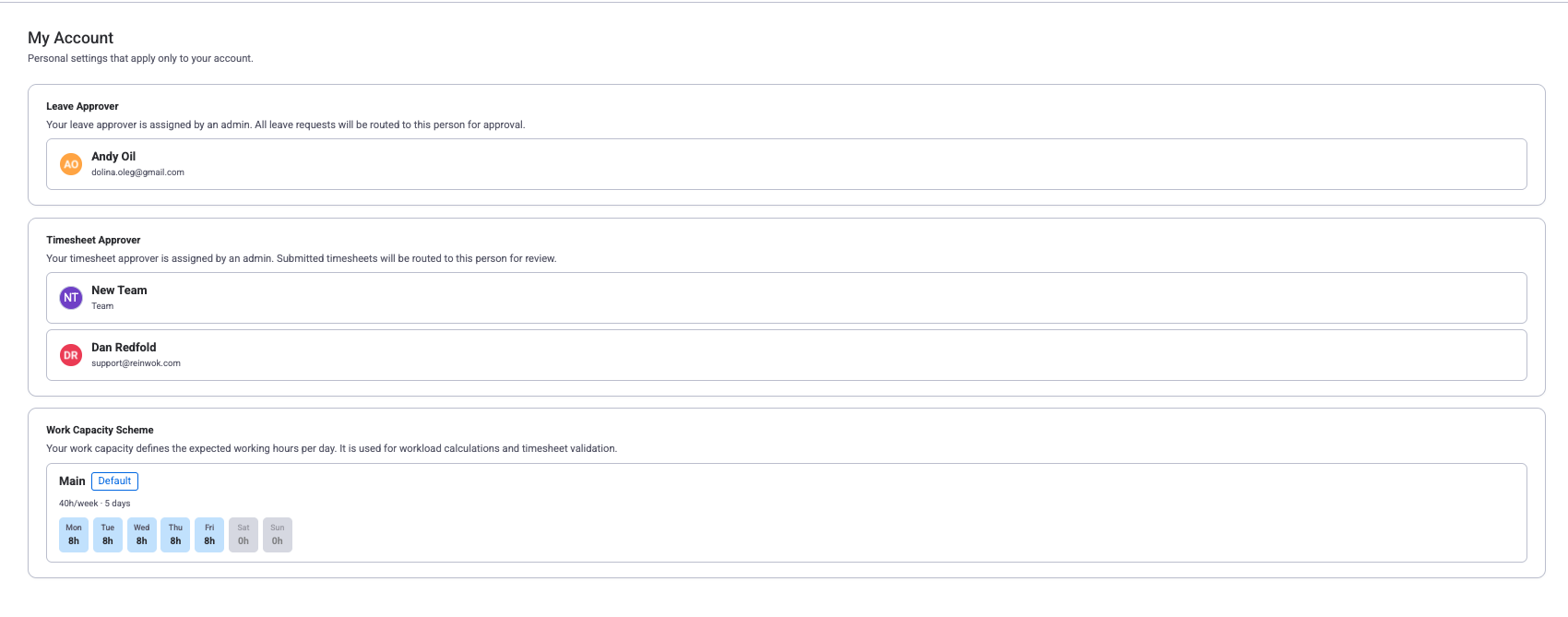
- Users can see their assigned scheme (read-only) in My Account within the Workspace View.
Assignment workflow
- Open the scheme you want to assign users to (click Edit).
- Scroll down to the Assigned Users section.
- Use the user picker to search for and add team members. Already-assigned users are excluded from the picker.
- To remove a user, click the remove icon next to their name. They will fall back to the default scheme.
Creating a capacity scheme but forgetting to assign users to it. A scheme has no effect until you add team members. Always assign the relevant users after creating a new scheme.
Group users by work pattern. For example, assign all part-time employees to a "Part-Time" scheme and all compressed-schedule contractors to a "4-Day Week" scheme. This keeps your capacity data accurate and easy to maintain.
How Capacity Feeds into Workload Calculation
Capacity schemes are the foundation of workload calculations in WorkHub. Here is how they work together:
- Available capacity is the number of hours a person can work on a given day, as defined by their capacity scheme.
- Scheduled hours is the total number of hours of tasks assigned to that person on that day (calculated from either the Scheduled Hours or Scheduled Hours Per Day column — see how these differ).
- Utilization is the ratio of scheduled hours to available capacity: Scheduled Hours ÷ Available Capacity × 100%.
Days with 0 hours of capacity (non-working days) appear as striped or greyed-out columns on the scheduler. Holidays and approved leave further reduce available capacity on specific days.
Workload Color Coding
The scheduler uses color coding to show each person's utilization level at a glance:
| Utilization | Color | Meaning |
|---|---|---|
| 0% – 50% | Light Blue | Underloaded — plenty of room for more work |
| 51% – 100% | Green | Healthy — at or near full capacity |
| 101% – 120% | Yellow / Orange | Near overload — consider rebalancing |
| > 120% | Red | Overloaded — reassign tasks to avoid burnout |
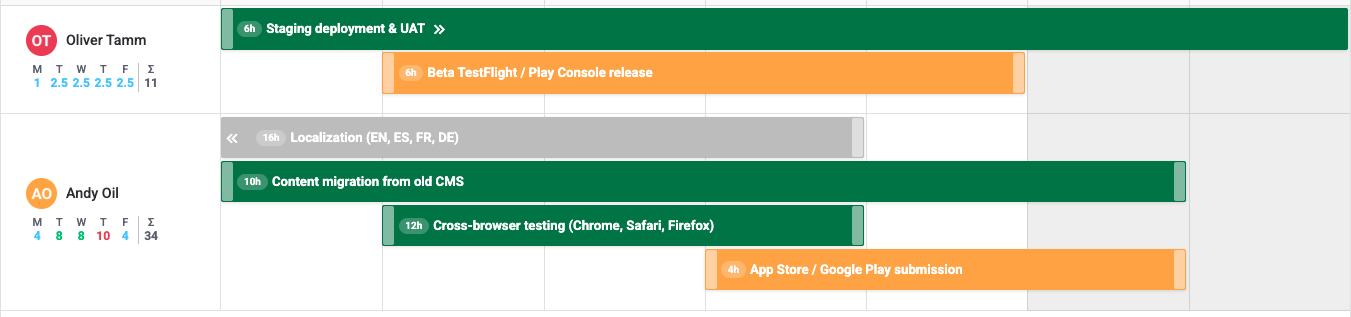
Available capacity is automatically reduced by approved leave and public holidays from the assigned Holiday Scheme. A full-day holiday or leave sets capacity to 0 for that day. A half-day leave halves it. Because utilization is calculated against the reduced capacity, even a small amount of scheduled work on a partial-leave day can push the percentage into yellow or red.
If a user's workload looks wrong, check whether they have the correct capacity scheme assigned in Settings. An incorrect scheme assignment is the most common cause of inaccurate utilization numbers.
Related Pages
- Workload Management — see how capacity schemes drive the real-time workload view.
- Holiday Schemes — define public holidays that further reduce available capacity.
- Settings — manage capacity schemes, holiday schemes, and other workspace configuration.
Need Help?
Questions about capacity schemes or schedule setup? Our support team is ready to help.
Live Chat