Filters, Scope & Navigation Back to top
Every Timesheets view shares the same toolbar at the top. Four reports live in the left sidebar (User Timesheets, Project Timesheets, Custom Timesheets, Progress), but the controls above the data table are identical across all of them, so anything you learn here applies everywhere.
Period & date navigation
- Period dropdown — eight presets (Current / Previous Week, Month, Quarter, Year) plus Custom Range for any start/end.
- ← / → arrows step backward or forward by one period of the same length (month → previous month; a custom 10-day range → previous 10 days).
- Today jumps to the period containing the current date.
Column granularity — Day / Week / Month
On every timeline view (User Timesheets, Project Timesheets, Custom Timesheets) a Day / Week / Month segmented control changes how worklogs are bucketed into columns. The setting is persisted across reloads and applies globally.
- Day (default) — one column per calendar day with weekday + day-number headers, weekend striping, and per-day workload heat-map tinting.
- Week — one column per Mon–Sun (or Sun–Sat per your locale). The first/last column clips to the period edge so a partial week shows partial. Headers format as
Mar 16 — 22(same month),Mar 30 — Apr 5(cross-month), orDec 29, 2025 — Jan 4, 2026(cross-year — straddling weeks stay as one column). - Month — one column per calendar month. Year suffix is added when the period spans years, e.g.
December 2025,January 2026. Edges clip to the period.
Row scope — Team / Users or Jira filter
The first two pickers in the toolbar are wrapped together in a dashed-bordered scope group, with a small “or” separator between them. They are mutually exclusive — picking from one clears the other. Together they define which rows the report renders.
- Team / Users — pick one or more teams and / or individual users. Selected teams expand to their members; selected individuals stay as themselves. Use this for “show me my team this week.”
- Jira filter — scope to the issues matched by a Jira saved filter (the same filters you manage under Filters › View all filters in Jira). On open the picker preloads 20 popular filters; type two or more characters to search by name. Worklogs shown are those logged against issues in the filter for the current period.
A few rules that make filter mode coherent:
- Allocations are hidden in filter mode. A Jira filter only resolves Jira issues, so allocation worklogs are excluded for the duration. Switch back to Team / Users to see them again.
- Worklog type is hidden in filter mode. Since allocations are excluded, the Both / Issue / Allocation toggle would only ever show issue worklogs — the picker is taken off the bar to avoid confusion.
- Privacy. Worklogs are intersected with the visibility scope used everywhere else: admins / org-wide roles see every author the filter matches, scoped roles see only their accessible authors, regular users see only their own. The canonical rule is in Permissions › Who Sees Whose Timesheets.
Projects filter
The Projects picker narrows the data further to specific Jira projects. It composes with whichever scope is active (Team / Users or Jira filter). Selected projects appear as removable chips below the toolbar.
Worklog type — Issue / Allocation / Both
The Worklog type dropdown filters by data source: Issue (Jira issue worklogs), Allocation (internal allocation worklogs on non-issue work), or Both (default). The Sum and Logged columns, every cell total, and the Excel export respect the selection. On Progress views the Logged column responds; the Required and Planned columns intentionally do not, since they describe capacity and forecast. Hidden when a Jira filter is active.
Active filter chips
Every active selection — teams, users, the Jira filter, projects — appears as a removable chip below the toolbar. A Show all button reveals hidden user chips when many are selected; Clear all wipes every active filter and returns to the default empty state.
Cell drill-down
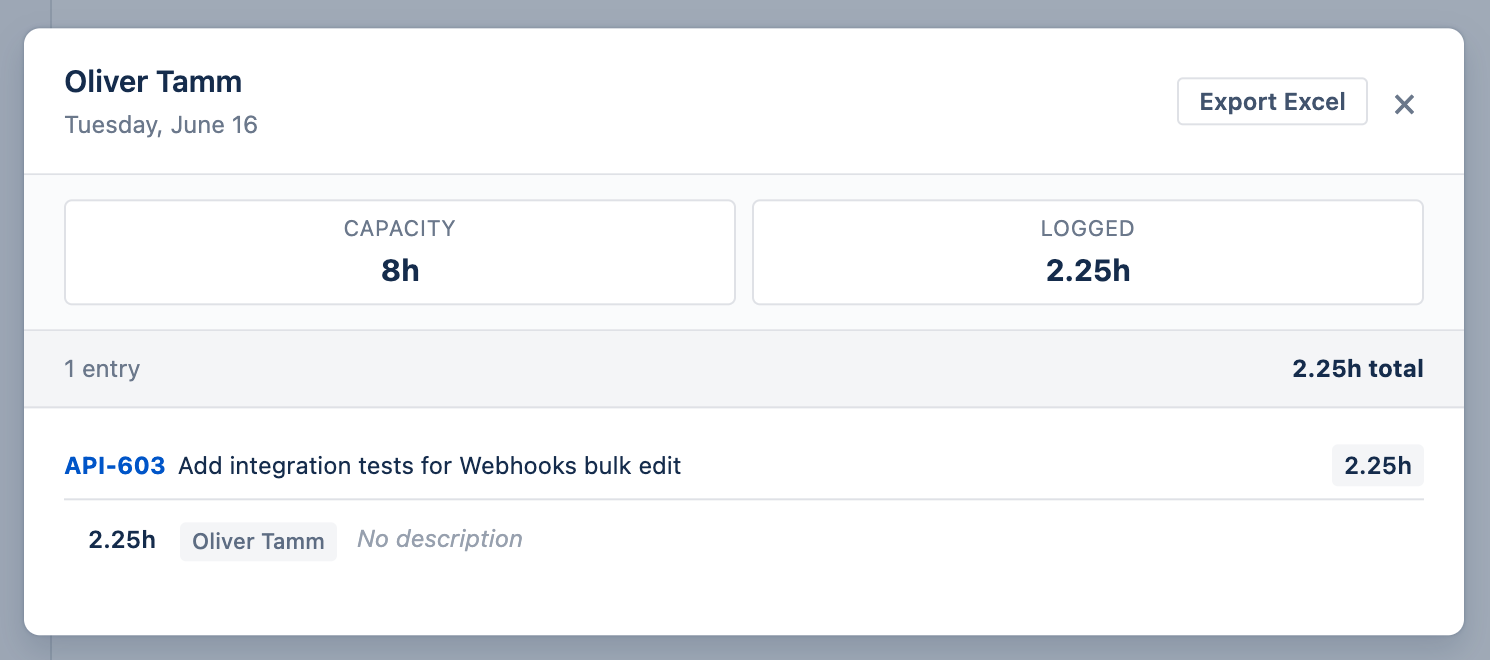
Clicking any cell in the grid opens a worklog detail dialog filtered to that row + column:
- User row — entries logged by that person.
- Project row — entries on that project, contributor-tagged.
- Issue row — entries on that issue. Issue key becomes the dialog title with the summary as a sub-line.
- Custom Timesheets bucket row — entries that match the bucket path (e.g. Issue Type: Story → Status: In Progress), contributor-tagged. Works at every nesting level.
In Day mode the dialog covers the single clicked date; in Week / Month mode it covers the column's full date range with entries grouped by date, then by issue or allocation within each date. For multi-contributor cells, each entry shows the user's name as a small badge.
Refresh, Explanation, Export
- Refresh re-runs the data fetch for the current scope + period without reloading the page.
- Explanation opens a per-report dialog that documents what each column means, how to read the data, and the row-scope / worklog-type rules in plain language.
- Export Excel downloads the current grid as a workbook honoring all active filters and column granularity.
Cell Colors & Interactions Back to top
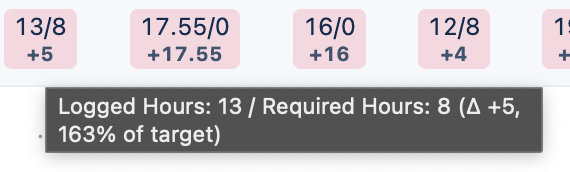
In User Timesheets views, each cell on a user row is tinted based on the ratio of logged hours to available capacity. In Day scope this is per-day; in Week / Month scope the ratio uses the column’s aggregated capacity (sum of available hours across the column’s days). The palette matches the Resource Scheduler workload indicator and the Reports, so the visual signal is consistent across the entire plugin.
| Color | Logged / Capacity | Meaning |
|---|---|---|
| Light Blue | 0 – 50% | Underloaded — significant spare capacity left |
| Yellow-Green | 50 – 80% | Moderate load — partially loaded, room for more work |
| Green | 80 – 100% | Near-full — healthy target utilization |
| Yellow | 100 – 120% | Near overload — more hours logged than available capacity |
| Red | > 120% | Overloaded — or, in Day scope, work logged on a leave / holiday day (conflict) |
| Blue | — | Approved leave day with no logged work (Day scope only) |
| Orange | — | Public holiday day with no logged work (Day scope only) |
Clicking a Cell
Cells are clickable on every row type — user, project, issue, and custom-bucket — in every scope (Day, Week, Month). Clicking opens the appropriate detail dialog filtered to whatever the row represents:
- User row, regular day with logged hours — opens the Worklog Detail dialog with every Jira worklog and allocation that user contributed, grouped by issue.
- User row, approved leave day (blue) — opens the Leave Detail dialog with the leave type, date range, full/half day, total days, approver, and optional note. Day scope only — aggregated Week/Month cells don’t carry a single leave status.
- User row, conflict cell (red with hours on a leave day) — opens the Leave Detail dialog and lists every worklog logged on that leave day, so the conflict is visible at a glance. Day scope only.
- Project / Issue / Custom-bucket row — opens the Worklog Detail dialog scoped to that entity. When the cell aggregates work from multiple contributors, each entry shows the user’s name as a small badge so you can tell who logged what at a glance.
- Week / Month scope cells — the dialog opens with the column’s full date range and groups entries by date, then by issue or allocation within each date, so you see the per-day breakdown that produced the aggregated total.
- Empty cells (no logged hours, no leave) — are not clickable.
Logged: Xh / Capacity: Yh where the capacity is the remaining available capacity after leave and holiday deductions.
User Timesheets Back to top
User Timesheets show logged hours grouped by person. Three sub-views provide increasing levels of detail.
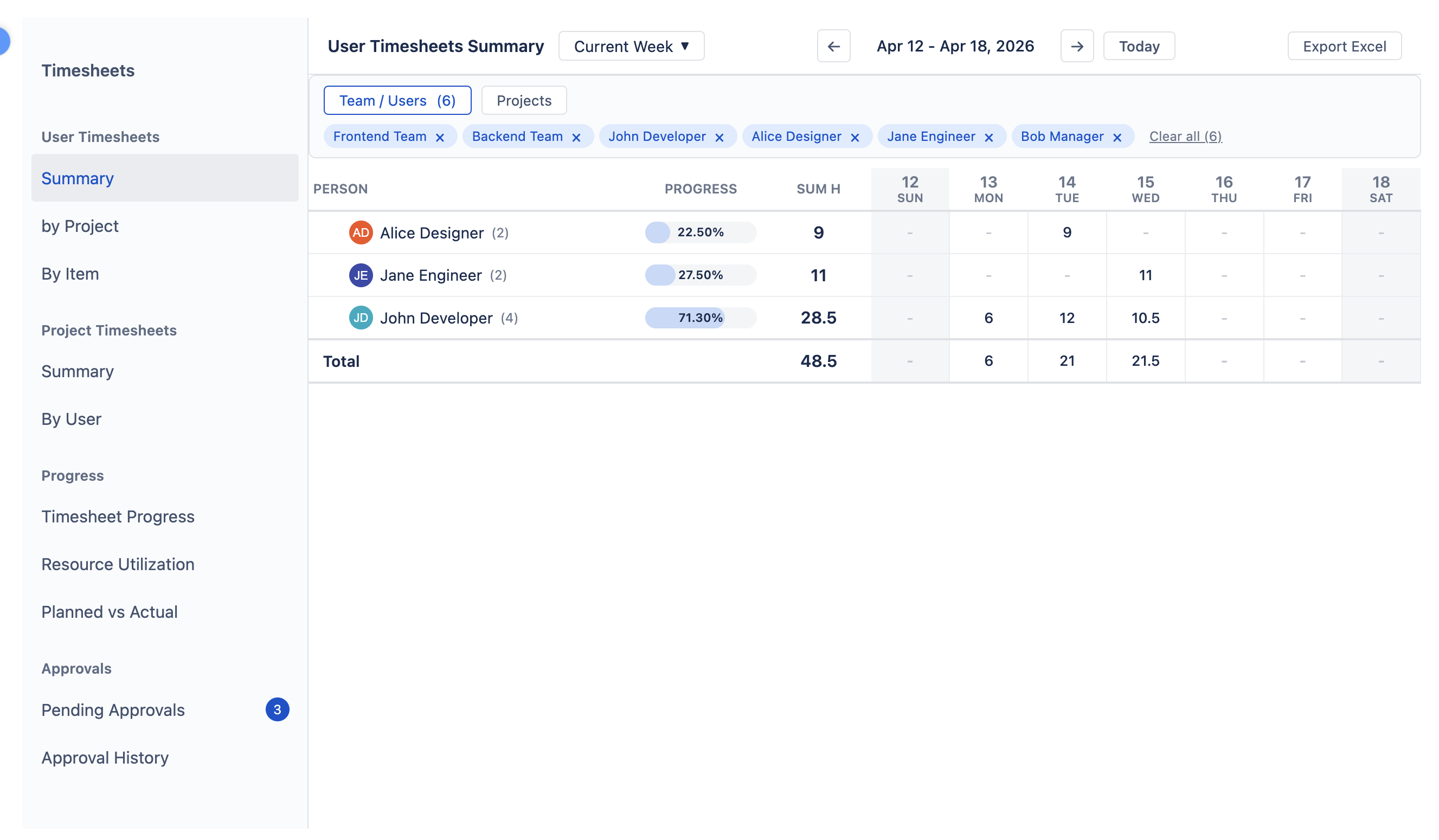
Summary
A flat table with one row per person. Each row shows the person's avatar, a progress donut chart with percentage, a total SUM H (hours logged in the period), and daily columns showing hours per day. A Total row at the bottom sums all users.
by Project
An expandable tree grouped as Person → Project. Each person row expands to show which Jira projects (and allocations) they logged time against, with project keys and names. Daily columns show hours per project per day.
By Item
The most detailed user view. Grouped as Person → Issue/Allocation. Each person row expands to list every individual issue (with key and summary) and allocation they logged time against. Shows the worklog description text alongside daily columns.
Project Timesheets Back to top
Project Timesheets flip the hierarchy: data is grouped by project first, then by person or issue. Two sub-views are available.
Summary
A flat table with one row per project (or allocation). Each row shows the project key, icon, and name, with total hours and daily columns. Functions the same as User Timesheets Summary but grouped by project.
By User
An expandable tree grouped as Project/Allocation → Person. Each project row expands to show which team members logged time against it, with their avatars and names. Daily columns show hours per person per day.
Custom Timesheets Back to top
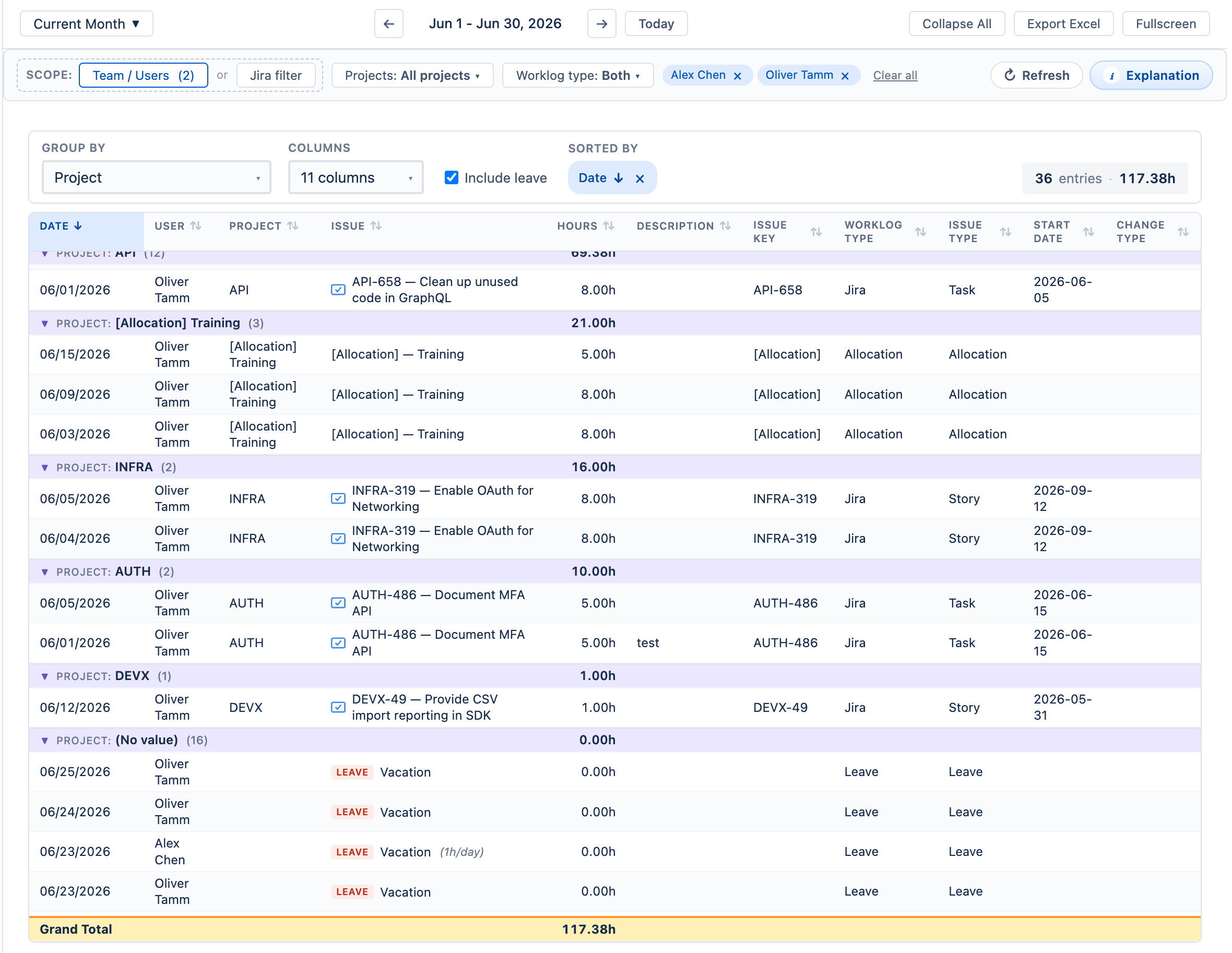
Custom Timesheets is a configurable view in the left sidebar (under Custom Timesheets → Configurable) that lets you group worklogs by any combination of Jira fields — up to 5 nested levels. Pick a field in the Group by dropdown for the top-level grouping, then add additional Then by levels to nest deeper, e.g. Issue Type → Assignee → Status.
Configuring grouping levels
When you first open the view, a single empty Group by picker is shown. As soon as you pick a field, a new placeholder Then by picker appears below for the next level — so adding a hierarchy feels like filling in a form rather than discovering a button. Click the × next to any level to remove it; the levels below shift up. The dashed-bordered picker at the bottom is always the next available level. Once you reach 5 levels the placeholder disappears and a (Maximum 5 levels) hint replaces it.
Each dropdown supports type-to-search filtering: open a picker and start typing to narrow the list by field name or id. Fields are grouped into two sections inside the dropdown: Common fields (Jira built-ins like Priority, Status, Assignee) at the top and Custom fields (everything you have configured in your Jira site) below. Each option shows its type in italic on the right (single-select, multi-user, sprint, …) so you can tell at a glance which buckets to expect. Fields you have already chosen at another level are hidden from the list.
Supported field types
Common fields (built-in): Assignee, Reporter, Creator, Priority, Status, Resolution, Issue Type, Labels, Components, Fix Versions, Versions, Project.
Custom fields: every classifiable type is supported — single-select, multi-select, radio buttons, multi-checkboxes, user picker, multi-user picker, labels, components, fix versions, sprint, group picker, multi-group picker, project picker, text, number, date, datetime, and cascading select. Custom fields whose schema we cannot classify (rare app-specific types) are filtered out so the dropdown does not surface options that would silently bucket as (No value).
Multi-value field totals
When a level groups by a multi-value field (multi-select, labels, sprints, multi-user, components, …), an issue with multiple values appears under each bucket at that level. The top-level total at the bottom of the timeline counts every worklog entry exactly once, regardless of how many buckets it lives in. Per-bucket totals sum every entry placed in that bucket, so for multi-value dimensions the sum of bucket totals can exceed the top total — this matches how most BI tools handle multi-value grouping.
Multiple multi-value levels can compound: with 5 nested levels, each grouping by a multi-value field with three values per issue, a single entry can appear under up to 35 = 243 leaf buckets. The top-level total stays accurate (each entry still counted once), but per-bucket totals at deeper levels can be heavily inflated. If totals look surprising, check whether one of your levels is a multi-value field.
“(No value)” bucket
At each level, worklogs whose Jira issue has no value for the chosen field land in a (No value) bucket. This bucket sorts to the bottom of its parent so real values group at the top. The same fallback also catches worklogs whose issue could not be located in Jira — rare in practice, usually only for very old issues that have been moved or archived.
“Allocations” bucket
Internal allocation worklogs (time logged against a project allocation rather than a Jira issue) land in a dedicated Allocations bucket at the top level, regardless of how many grouping levels you have configured or which fields they use. Jira custom fields don’t apply to allocations, so the Allocations bucket is always flat — it has no children even when deeper levels exist. It sorts between the real custom-field values and the (No value) bucket so you can always see the allocation total at a glance. When no levels are configured at all, the timeline still shows the Allocations row alone (issue worklogs are hidden because there is nothing to group them by).
Actuals only
Custom Timesheets shows logged hours only. Planned-hours columns and the Progress column are hidden because a custom-field bucket (e.g. “Severity = High”) is not a person and has no capacity scheme — comparing logged time against capacity at that level would not be meaningful. To compare planned vs actual, use the dedicated Reports for that purpose.
Progress Back to top
The Progress section contains three capacity-focused views. Each answers a different question about your team's time. All three show a flat list of users with a Total row at the bottom.
How the numbers are calculated
Every column in the three Progress views is derived from one of four ingredients. Knowing exactly what each ingredient is — and what it deliberately is not — will save you a lot of "why doesn't this match?" debugging.
| Ingredient | Definition | Source |
|---|---|---|
| Period | The date range chosen in the period picker at the top of the Timesheets view (Current Week, Current Month, or a custom range). Every other ingredient below is restricted to dates that fall inside this range. | Toolbar selection |
| Required Hours | For each working day in the period, take the user's capacity for that weekday from their assigned capacity scheme, then subtract any holiday hours and approved leave hours that fall on that day. Sum across the period. A user with no assigned capacity scheme falls back to the global default scheme defined in Settings. Days where the user is fully on holiday or on full-day approved leave contribute 0. |
Capacity schemes, holiday calendars, approved leave |
| Logged Hours | Sum of both sources:
|
Jira worklogs + allocation worklogs |
| Planned Hours | See the section below — this one needs more than a one-liner. | Issue original estimates + allocations |
Planned Hours — the long version
For each Jira issue assigned to the user whose start → end date range overlaps the period, WorkHub takes the issue's Original Estimate and spreads it evenly across the issue's working days (i.e. days that match the user's capacity scheme working days, excluding holidays and approved leave). The portion of that distribution that falls inside the selected period contributes to the user's Planned Hours.
On top of issues, every custom allocation covering the user in the period adds its declared hours per day to Planned Hours, for each working day the allocation overlaps. Allocations are not estimated — they are scheduled flat hours.
A few specifics that often surprise people:
- Original estimate, not remaining. Progress views always use the issue's original estimate. They never use remaining estimate. This is deliberate: as work is logged, Jira automatically decrements the remaining estimate, so a remaining-estimate "Planned" would shrink the more you log — making any Logged-vs-Planned comparison meaningless. By pinning to the original estimate, the planned bar stays fixed and the progress percentage reflects actual delivery against the original commitment.
- Done issues still contribute. A completed issue's original estimate is still distributed across its date range. It does not drop out of Planned Hours after closing — that's exactly the value you want to compare actuals against.
- Issues without an original estimate contribute 0. If an issue has no Original Estimate set on the Jira side, it adds nothing to Planned Hours regardless of how long its date range is. To get a meaningful Planned figure, your team must populate Original Estimate on issues.
Example. An issue with an 80 h Original Estimate is scheduled across two weeks (Mon–Fri × 2 = 10 working days, so 8 h/day). If the user views the timesheet for just one of those weeks, that issue contributes 5 × 8 = 40 h to their Planned Hours — only the portion that falls inside the selected period.
For the Reports gallery (Resource Utilization Forecast and Project Resources), the calculation switches to remaining estimate — those reports answer "how much capacity is still committed?", which is the opposite question. If you compare numbers between a Progress view and a Reports view and they differ, this is the most likely reason.
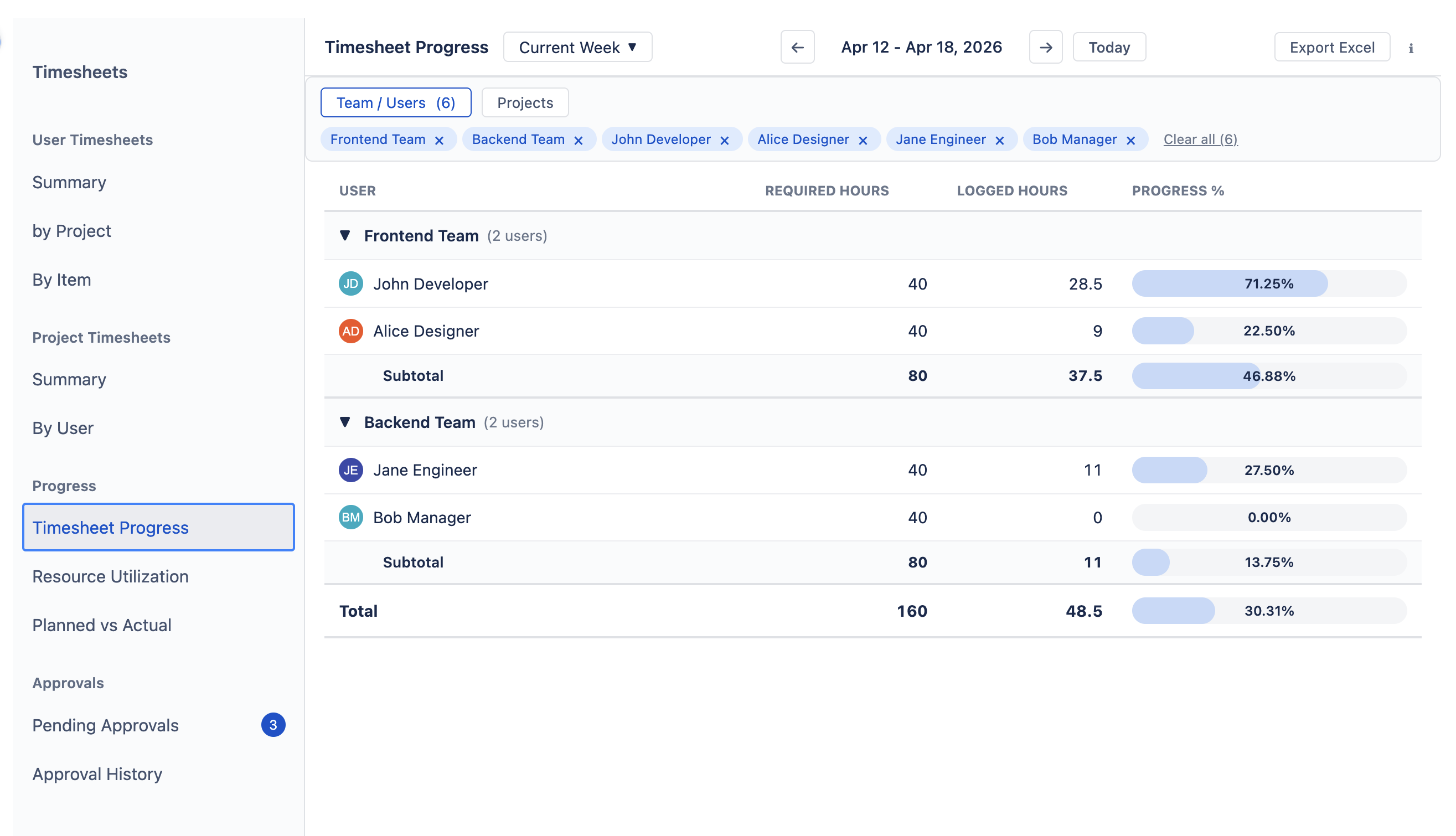
Timesheet Progress
Question it answers: How much of their required capacity has each person logged?
| Column | What it shows |
|---|---|
| User | Team member name and avatar. |
| Required Hours | Available capacity for the period (from the user's capacity scheme, minus holidays and approved leave). |
| Logged Hours | Sum of Jira issue worklogs and allocation worklogs by this person in the period (see How the numbers are calculated). |
| Progress % | Visual bar showing Logged / Required as a percentage. Green when on track, red when over capacity. |
How to use: Run this at the end of each week to check who hasn't finished logging. If someone's bar is well below 100%, they may have unrecorded work.
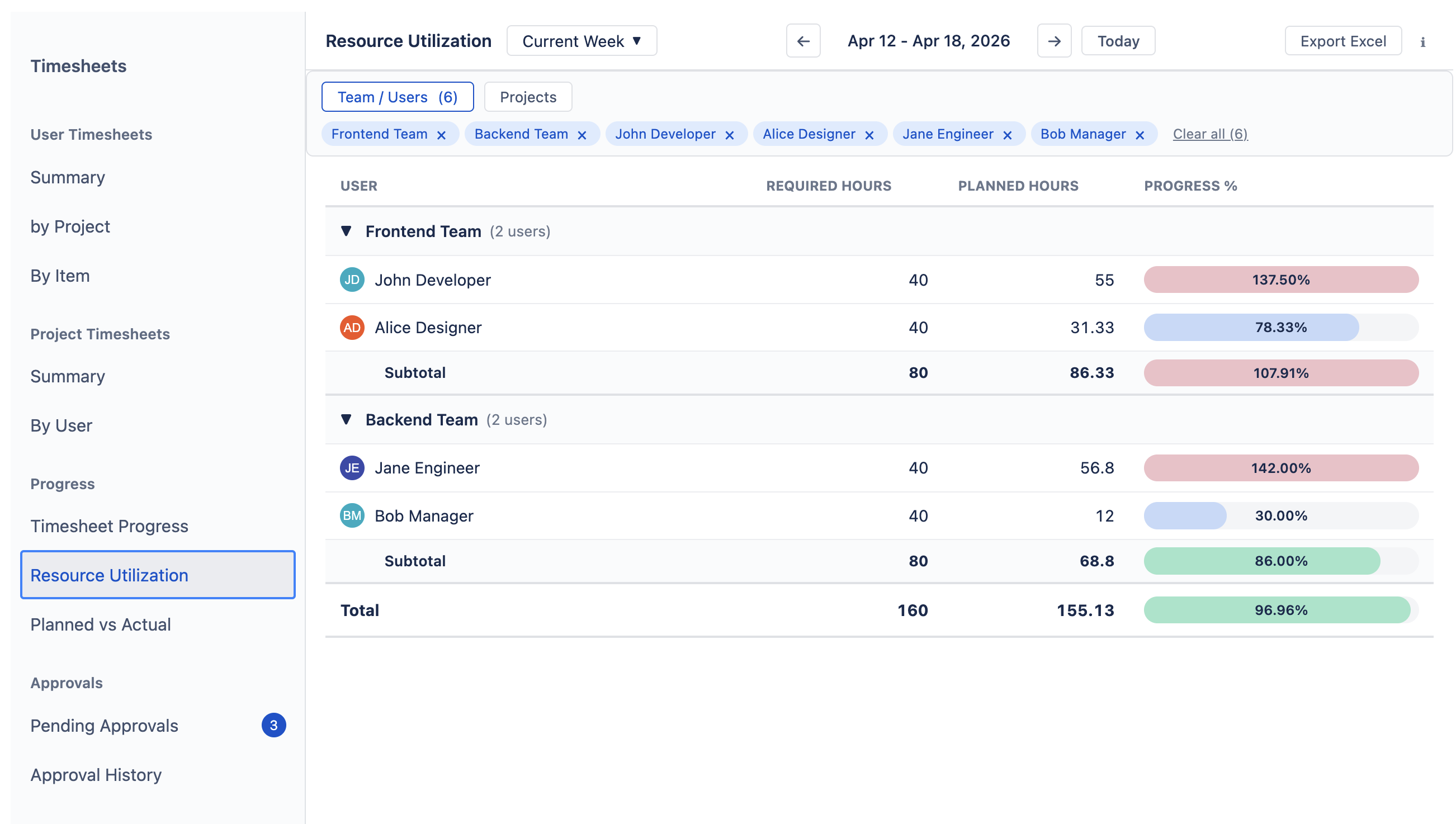
Resource Utilization
Question it answers: How does planned work compare to available capacity?
| Column | What it shows |
|---|---|
| User | Team member name and avatar. |
| Required Hours | Available capacity for the period. |
| Planned Hours | Original estimates of overlapping issues, distributed across working days, plus allocation hours per day — restricted to the period (see How the numbers are calculated). |
| Progress % | Planned / Required as a percentage. Green when balanced, red when over 100% (overbooked). |
How to use: Use this during sprint planning to check if the workload is balanced. If someone is over 100%, they are overbooked.
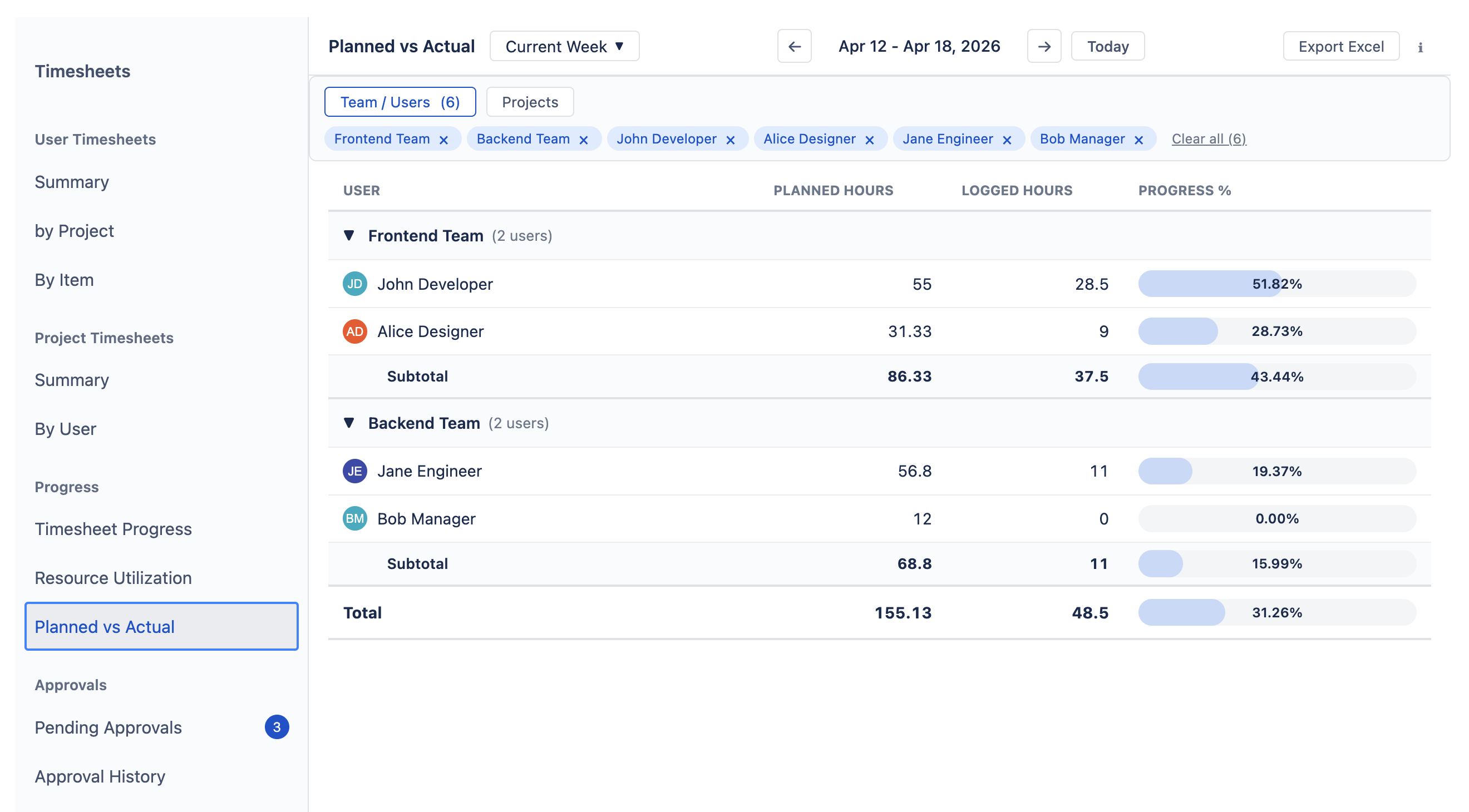
Planned vs Actual
Question it answers: How does actual logged time compare to what was planned?
| Column | What it shows |
|---|---|
| User | Team member name and avatar. |
| Planned Hours | Same calculation as Resource Utilization — original estimates distributed across working days plus allocation hours, restricted to the period (see How the numbers are calculated). |
| Logged Hours | Sum of Jira issue worklogs and allocation worklogs by this person in the period (see How the numbers are calculated). |
| Progress % | Logged / Planned as a percentage. Green when close to plan, red when significantly over or under. |
How to use: Run this after a sprint or at month-end to compare estimates versus actuals. If logged hours consistently exceed planned, your team may be underestimating.
Exporting to Excel Back to top
Every timeline view has an Export Excel button in the toolbar. The export produces a spreadsheet that mirrors what you see on screen, so you can share or archive data without losing context.
- Column layout matches the on-screen table: Entity (person, project, issue, or custom-bucket), Progress, Sum (h), and one column per bucket in the selected period — daily in Day scope, weekly in Week scope, monthly in Month scope. The column header text matches the on-screen label (ISO date in Day, e.g.
Mar 16 — 22in Week,March 2026in Month, with year tags on cross-year columns). - Progress column is included only when the on-screen view shows it. In Project Timesheets views (project-rollup rows), the Progress column is omitted from the export as well, keeping the sheet clean.
- Cells are color-coded on user rows using the same workload palette as the UI (5 utilization tiers). In Day scope, distinct tints are also applied for leave, holiday, and conflict cells. In Week / Month scope, those day-only tints are dropped because a column aggregates many days — switch to Day mode to see them, same as the UI. Excel fills have no transparency, so the UI’s translucent tint is pre-blended with white to produce a readable solid color.
- Progress values are shown with two decimals (e.g.
85.16%), identical to the on-screen value — no rounding drift between the timeline and the Progress view. - Totals row at the bottom sums all top-level rows, matching the footer shown on screen.
- Frozen header keeps the column titles visible while scrolling through large periods.
- Hierarchical group rendering — nested rows (User Timesheets by Project, Project Timesheets by User, and especially the multi-level Custom Timesheets) export with two reinforcing visual cues:
- Each child row’s label is indented in proportion to its depth so the hierarchy reads at a glance even on a printout.
- Native Excel row outlining is applied: clicking the +/− toggles in the row gutter collapses or expands a group exactly like the in-app expand/collapse. Summary rows are kept above their children (the export sets
summaryBelow: false) so the parent always sits at the top of its group.
Dec 29, 2025 — Jan 4, 2026stay readable.
Submitting Timesheets Back to top
Employees submit timesheets from the Time Tracking page (not the Timesheets view, which is the review / reporting / approval surface). Select the week to submit on the Time Tracking weekly grid, review your worklogs, and click Submit for Approval.
- Open Time Tracking and navigate to the week you want to submit. The week end date must not be in the future.
- Review your worklogs — verify that all worklogs for the week are correct. Once you submit, worklogs in the period are locked from edits (when locking is enabled in the General settings).
- Click Submit for Approval. The system picks the right approver automatically based on the Advanced Access rules in Settings › Permissions. Your timesheet moves to Pending Approval, where managers can review it from the Timesheets → Approvals section described below.
Submission guards
- Has worklogs: The period must contain at least one worklog. You cannot submit an empty timesheet.
- Period not future: The period end date must not be in the future. You cannot submit timesheets for periods that haven't ended yet.
Timesheet statuses
Every timesheet moves through a set of statuses:
| Status | What it means | Can you edit worklogs? |
|---|---|---|
| Not Submitted | No submission exists yet. You can freely add, edit, or delete worklogs. | Yes |
| Pending Approval | Submitted and waiting for the approver to act. | Locked |
| Approved | The approver accepted the timesheet. Hours are finalized. | Locked |
| Rejected | The approver returned the timesheet with a reason. Fix the issues and resubmit. | Yes |
| Reopened | An approver or admin reopened a previously approved timesheet so corrections can be made. | Yes |
Reviewing & Approving Back to top
If you are an approver you will see pending submissions that require your action. For each submission you can see the employee name, date range, total hours, and number of worklogs.
Pending Approvals
This view shows a list of submitted timesheets waiting for your action. For each submission you can review:
- Employee name and avatar
- Date range and total hours
- Number of worklogs
- Status history showing all past transitions
Taking action
From the pending submissions view you can:
- Click Approve to accept the timesheet and lock the worklogs.
- Click Reject and enter a reason (at least 10 characters) explaining what needs to change. The employee's worklogs are unlocked for correction.
Approval History
The Approval History view lists every approved and rejected timesheet, sorted by review date with the most recent first. Use the user search at the top to narrow the list to a specific employee, and use the Prev/Next controls to page through older entries (20 per page).
Each approved row also exposes a Reopen action so an approver can send the timesheet back for corrections without leaving the history view — see Reopening an approved timesheet below.
Reopening an approved timesheet
If a timesheet was approved but later needs corrections, an approver or admin can reopen it:
- Find the approved timesheet in Approval History.
- Click Reopen and enter a reason (at least 1 character) explaining why.
- The employee's worklogs are unlocked. They can make corrections and resubmit.
Approval Routing & Visibility Back to top
Who can see a timesheet and who can approve it is determined by the plugin’s role + access-rule model. The canonical reference lives in Permissions & Access; this page only summarises the parts that matter for the Timesheets view.
Who sees whose timesheets
- App Admin / Org Manager / Org Viewer — every user’s timesheets and worklogs across the site.
- Team Manager — only members of the teams they manage. Teams they merely belong to (but don’t manage) don’t count here.
- Advanced Access Approver or Viewer rule target — only the specific users the rule lists. Approver and Viewer rules grant identical visibility; the rule type only decides whether the holder can act on the timesheet.
- Regular user — only their own timesheet.
What happens at submission time
When a user clicks Submit for Approval, the system walks the access-rule chain to pick a primary approver for the row (the stamped approver_id, used for notifications and as the “assigned to” reference). Resolution is most-specific-wins:
- Team Manager of any team the submitter belongs to — this is the canonical team approver and wins over rule-based assignments. Self-excluded: when the submitter is themselves a TM of their own team, another TM is preferred.
- Per-user Approver rule pointing at this exact person.
- Per-team Approver rule covering a team the submitter belongs to. Self-excluded the same way as step 1.
- All-users catch-all Approver rule (Org Manager).
If the chain resolves to the submitter themselves (e.g. a per-user rule pointing at the submitter, or an all-users rule on a site where the submitter is the listed approver) the timesheet is auto-approved — that is the only path to self-approval. If no rule resolves at all, submission is blocked with an error and an admin must add an Approver rule.
Who can actually act on a submitted timesheet
The stamped primary approver is not a gatekeeper. The submission appears in the Pending Approvals queue of every eligible reviewer at the same time, and any one of them can approve, reject, or reopen it — first action wins. The eligible set is:
- App Admin — always.
- Org Manager (target of an all-users Approver rule) — site-wide.
- Team Manager of any team the submitter belongs to — even if the row was stamped to a different approver.
- Advanced Access Approver-rule target — per-user, per-team, or all-users. Any matching Approver rule grants action rights, not just the most specific one that won at submission.
- The submitter themselves — never, except via the automatic self-approval at submission time described above. The button is hidden in the queue.
Viewer-rule targets and Org Viewer see the submission in their list (visibility is identical to Approver-rule visibility) but the approve / reject / reopen buttons are disabled — they can read, not act.
Need Help?
If you have questions about timesheets or need help with your setup, our support team is here to help.
Contact Support