Overview Back to top
Teams define which users are visible on the scheduler. For Jira sites with many users, teams are essential — the scheduler displays only members of the currently selected team(s), keeping the view focused and performant. Without teams configured on a large instance, the scheduler would need to load hundreds or thousands of users, which is impractical.
A team is a named group of Jira users — essentially a saved user filter. When you select a team in the scheduler toolbar, only its members appear as rows on the timeline. The same user can belong to multiple teams. Issues, worklogs, and leave data remain unchanged — the team simply controls which people are visible.
Teams are also used for filtering in other parts of the app:
- Timesheets — filter progress reports by team to review a specific group's submissions.
- Reports — scope utilization and worklog reports to a particular team.
- Leave — view leave requests from team members.
Creating a Team Back to top
Only app admins can create and manage teams. To create a new team:
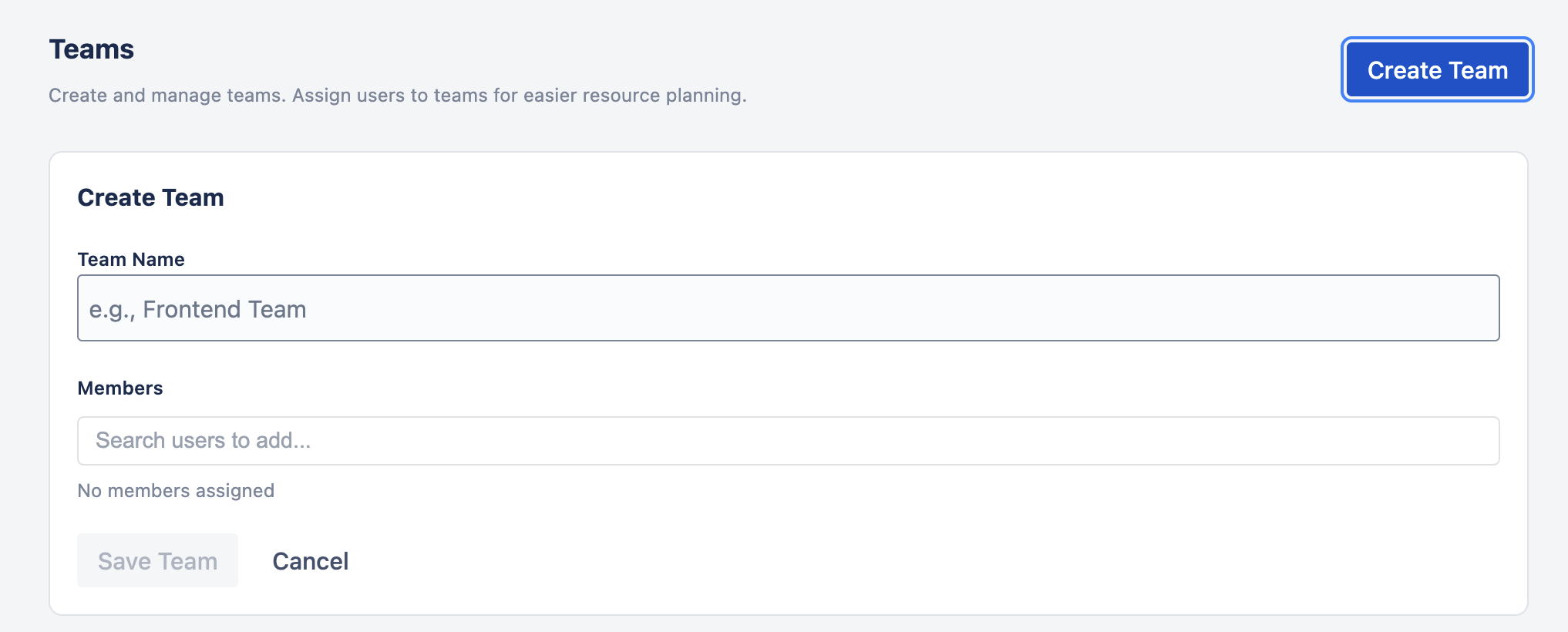
- Go to Settings › Teams.
- Click Create Team.
- Enter a team name (e.g., "Frontend Team", "Backend Team", "Design").
- Add members using the multi-select user picker — type a name to search, then tick users in the dropdown. The dropdown stays open so you can select several people in one pass; selected members appear as chips inside the field.
- Remove a member by clicking the × on their chip (or pressing Backspace in the empty search field).
- Click Save.
A user can belong to more than one team. For example, a developer might be in both "Frontend Team" and "Project Alpha" teams. This lets you create overlapping groups for different planning perspectives.
Managing Teams Back to top
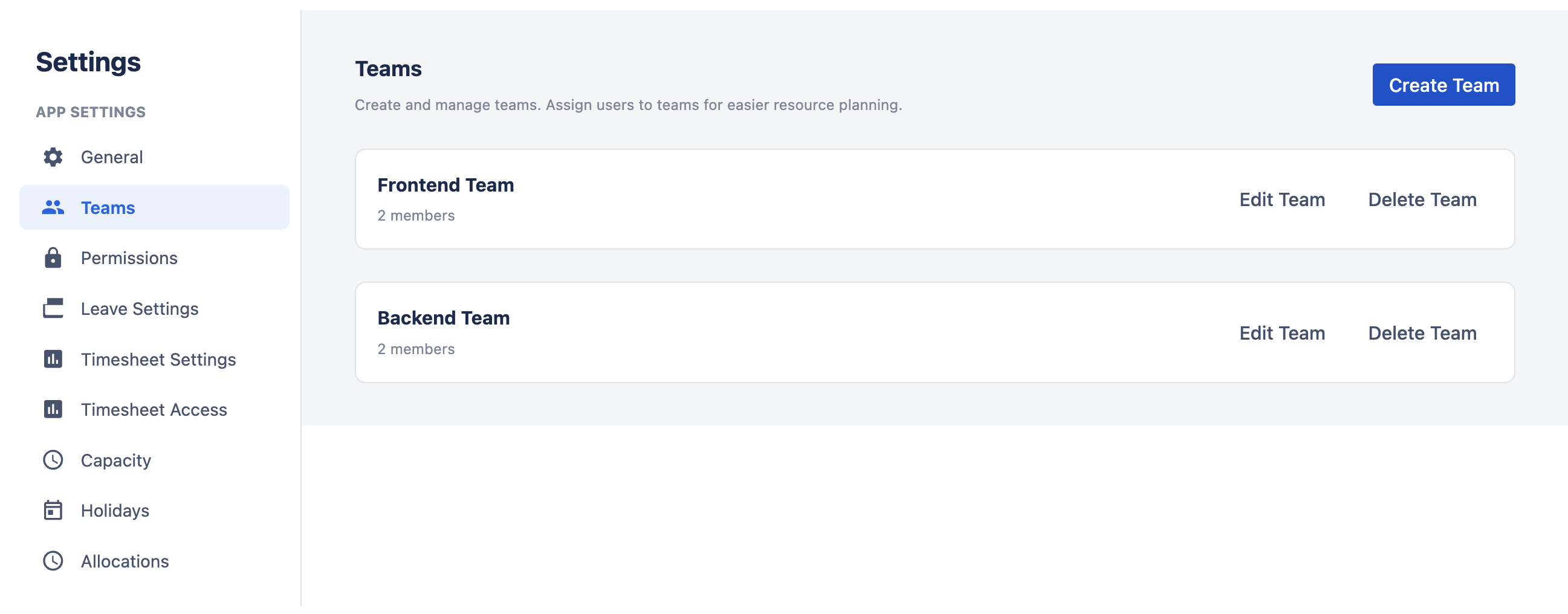
The Teams settings page shows all configured teams with their member counts. Available actions include:
- Edit — change the team name, and add or remove members.
- Delete — remove the team entirely. Deleting a team does not affect the users themselves — only the grouping is removed. Issues, worklogs, and other data remain intact.
Teams on the Scheduler Back to top
When teams are configured, the scheduler toolbar displays a team filter dropdown. Users can:
- Filter by team — select a team to show only its members as rows on the scheduler timeline.
- Select multiple teams — combine teams to compare workload across departments or project groups.
- Focus during planning — managers can narrow the view to their own team members during planning sessions, reducing visual noise from unrelated resources.
The team filter works alongside other scheduler filters (project, status, search). When both a team filter and a project filter are active, only issues assigned to team members within the selected projects are displayed.
Team Filters Back to top
Teams are used as filters across multiple features in WorkHub:
| Feature | How teams are used |
|---|---|
| Scheduler | Filter visible user rows by team. Only selected team members appear on the timeline. |
| Timesheets | Filter the progress table by team to review a specific group's timesheet submissions. |
| Reports | Scope utilization and worklog reports to a particular team for focused analysis. |
| Leave | View leave requests from team members to understand upcoming availability. |
For small teams (under 20 users), you may start without teams and see all users on the scheduler. For larger organizations, create teams immediately to keep the scheduler manageable — loading hundreds of users without filtering is impractical and degrades performance.
Need Help?
If you have questions or need assistance with WorkHub for Jira, our support team is here to help.
Contact Support