The Five Roles Back to top
Every user in WorkHub holds one or more of five roles. The Permissions settings page (Settings → Permissions) splits these into sub-tabs — each sub-tab grants one role. A user can hold any combination; the most permissive role wins for any given action.
The default role is Regular user: every user starts here and stays there until an admin explicitly grants something more in one of the sub-tabs. You don't need to add anyone to "make them a regular user."
App Admin
Full access to everything in the app, including configuration (teams, leave types, holidays, capacity schemes, permissions). App Admins bypass every WorkHub gate: the "All Users" toggle, the read-only flag, and any other restriction. They do not bypass Jira's own permissions — an App Admin still only sees the issues and worklogs from the Jira projects they can access (see How Visibility Composes).
- Granted in the App Admins sub-tab.
- Admin assignments are user-targeted only — you cannot grant App Admin to a Jira group (keeps the grant auditable).
- The last App Admin cannot be removed (safety net).
- On a fresh install, the first user who completes the field-mapping dialog is auto-promoted to App Admin.
Org Manager
Sees and acts on every user's data — approves leaves and timesheets, edits any allocation, drags any issue on the Scheduler. Cannot change configuration (that stays with App Admin).
- Granted in the Org-wide Access sub-tab.
Org Viewer
Sees every user's scheduler, timesheets, leaves, and reports. Cannot approve or edit anyone else's work, but can still act on their own data (log own time, request own leave, manage own allocations). Useful for auditors, HR, and analysts.
- Granted in the Org-wide Access sub-tab.
Team Manager
Sees and acts on members of teams they manage — approves leaves and timesheets, edits allocations, drags issues, for those members only. Outside their managed teams they behave like a regular user.
- Granted in the Team Managers sub-tab: pick a user, check the teams they manage.
- Team Managers are the default approver for their team's members when those members submit a leave or timesheet (see Approval Routing).
- Can apply existing capacity schemes and holiday calendars to team members — but cannot create the schemes / calendars themselves (admin-only).
Regular user (default)
The default role — every user starts here without any explicit assignment. Regular users:
- See themselves plus members of their own teams on the Scheduler (issues, allocations, and leaves all render on the timeline so the team can plan around each other).
- Do not see teammates' timesheets or worklogs — these are private to each user and visibility requires an explicit role.
- Log their own time, request their own leave, and manage their own allocations.
- Can reschedule issues and create or edit allocations for teammates on shared teams — these are coordination artifacts, not personal data. (Issue rescheduling is additionally subject to the user's Jira project permissions.)
- Cannot approve, reject, recall, or edit anyone else's leaves, timesheets, or worklogs — those stay with the owner or a designated approver.
Who Sees Whose Timesheets Back to top
This is the single most-misread rule in the permission model. A Regular user on the Scheduler sees their teammates’ assigned issues, allocations, and leaves (collaborative surfaces), but switching to Timesheets they see only their own row. The split is intentional — timesheets and worklogs are sensitive personal data, while the Scheduler is coordination data.
- App Admin / Org Manager / Org Viewer — every user’s timesheets and worklogs across the site.
- Team Manager — only members of the teams they manage. Members of other teams the manager happens to belong to (but not manage) are not visible on Timesheets.
- Advanced Access Approver / Viewer — only the specific users the rule targets. Approver and Viewer rules grant the same visibility; the rule type only decides whether the holder can act on the timesheet or only read it.
- Regular user — only their own timesheet and own worklogs.
The same rule applies to the Worklog Report and to per-row internal (allocation) worklogs — a user’s visibility into someone else’s logged time always flows through one of the explicit grants above.
The Read-Only Flag Back to top
Read-only is a flag, not a role. It composes with any role: when set on a user, every action that changes data — approve, reject, edit, delete, log time, request leave, drag an issue — is disabled for them. Their visibility stays unchanged (they still see exactly what their role allows).
- Set in the Read-Only Users sub-tab.
- Compatible with any role: a read-only Team Manager still sees their team's data; they just can't approve, edit, or delete.
- App Admins always bypass the flag — this is the lockout-recovery invariant: an admin can never accidentally lock themselves out of configuration.
- To block a user from the app entirely, revoke their Jira project access — that is a Jira-level setting, not a plugin one.
When to use
Offboarding, suspensions, audit lockdowns, or contractors who should keep visibility into ongoing work but stop making changes.
How Visibility Composes Back to top
A user's "readable scope" — the set of other users they can see in WorkHub — is the union of:
- Themselves (always).
- Members of every team they belong to, on collaborative surfaces only: Scheduler, allocations, leave list. Teammates' timesheets and worklogs stay private to the owner.
- Members of every team they manage (Team Manager) — full visibility, including timesheets and worklogs.
- Users covered by an explicit Advanced Access rule pointing to them as Approver or Viewer.
- Everyone, if they hold an org-wide role (Org Manager or Org Viewer) or are an App Admin.
Jira permissions sit underneath WorkHub roles
WorkHub respects your Jira permissions: even with the App Admin role, a user can't see issues, projects, or worklogs they don't have access to in Jira. Jira issues and worklogs (Scheduler, Time Tracking, reports) are read from Jira as the signed-in user, so Jira's own permissions decide what is visible. The roles above only widen access to WorkHub's own data — leaves, timesheets, allocations, and internal (allocation) worklogs.
Approval Routing Back to top
When a user submits a timesheet or a leave request, WorkHub picks the default approver by walking this chain — the most specific match wins:
- Team Manager — any Team Manager of a team the submitter belongs to, other than the submitter themselves. This is the canonical team-level approver and is set in the Team Managers sub-tab. The submitter is skipped at this step even when they manage their own team — the chain prefers a peer Team Manager when one exists.
- Per-user Approver rule — an explicit Advanced Access Per-User Assignment naming that user.
- Per-team Approver rule — an Advanced Access rule scoped to a team the submitter belongs to. Same self-skip as step 2: a rule that would name the submitter as approver of their own team falls through to the next step.
- All-users Approver rule — the org-wide Approver rule (Org Manager target).
The first match in the chain becomes the approver for that submission. Any subsequent approver in the chain can still act on it — for example, three Team Managers of one team can all approve a submission from a member, even though only one is labelled the "default" reviewer on the row.
Multiple approvers — leave requester picks
When more than one approver matches the chain above — for example, the requester’s team has two Team Managers, or a Team Manager and a per-team Approver rule both apply — the leave Request dialog renders an Approver dropdown. The list is ordered by precedence (Team Managers first, then per-user rule, then per-team rules, then org-manager / all-users rule). The top entry is preselected as the default; the requester can switch to anyone else in the list before submitting. The chosen approver is the one whose decision the leave waits on.
Timesheets do not offer a picker. On submit, the timesheet is auto-routed to the highest-precedence approver from the chain — that person shows up as the “reviewer” on the submission and gets the notification. The submitter has no choice in this assignment. However, like leaves, any applicable approver can act on the submission — if three Team Managers all manage the submitter’s team, any one of them can approve, not only the auto-assigned default. The contrast with leaves is on who picks at submit time: leaves let the requester choose so they can address the request to a specific person; timesheets don’t, because the submission is operational and any valid approver acting first is fine.
Self-approval rule
For timesheets, self-approval is allowed only when an admin has explicitly configured the user as their own approver — specifically via an Advanced Access Per-User Assignment pointing user X to user X, or an Org Manager (all-users) rule where the user is the target. In those cases the submission auto-approves on submit. Otherwise, if no third-party approver resolves, the submission is blocked with a clear error and the admin needs to assign an approver. A working Team Manager (TM of their own team) is not treated as self-approver — the resolver self-excludes the TM step, so the submission gets blocked unless a real third-party approver is configured.
For leaves, the rule is more permissive: any user with no resolved approver is auto-approved with the owner recorded as their own approver. This keeps leave creation unblocked on sites that haven’t configured an approver chain yet. To force every leave through a reviewer, configure at least one Team Manager, an Org Manager, or an Advanced Access rule covering the user.
When the approval workflow is off
The timesheet and leave approval workflows can each be turned off independently in Settings → General. The precedence chain above does not apply in those cases:
- Timesheet approval off: users log time normally, but the submit / approve / reject flow is hidden entirely. There are no submissions to review.
- Leave approval off: every leave request is auto-approved on creation, with the owner recorded as their own approver. Approver and viewer assignments are not consulted.
Leave-specific actions
The leave workflow supports a few transitions beyond approve / reject:
- Recall (before decision) — the owner withdraws a pending request. Immediate, no approver consent.
-
Recall (after approval) — the owner asks to undo an approved leave. Normally the status becomes "Recalling" and the approver decides. Three cases skip "Recalling" and finalise straight to "Recalled" because there is no third party to ask:
- The leave approval workflow is globally off — every leave was auto-approved on creation.
- The leave was self-approved (the owner is recorded as their own approver because no other approver was configured at create time).
- The caller IS the approver — they recall their own decision directly.
- Deny recall — the approver keeps the leave approved when the owner has requested a recall.
- Revoke — the approver directly cancels an approved leave without the owner asking.
Configuring Permissions Back to top
Permissions live under Settings → Permissions. Each sub-tab grants one specific thing:
Manage Access
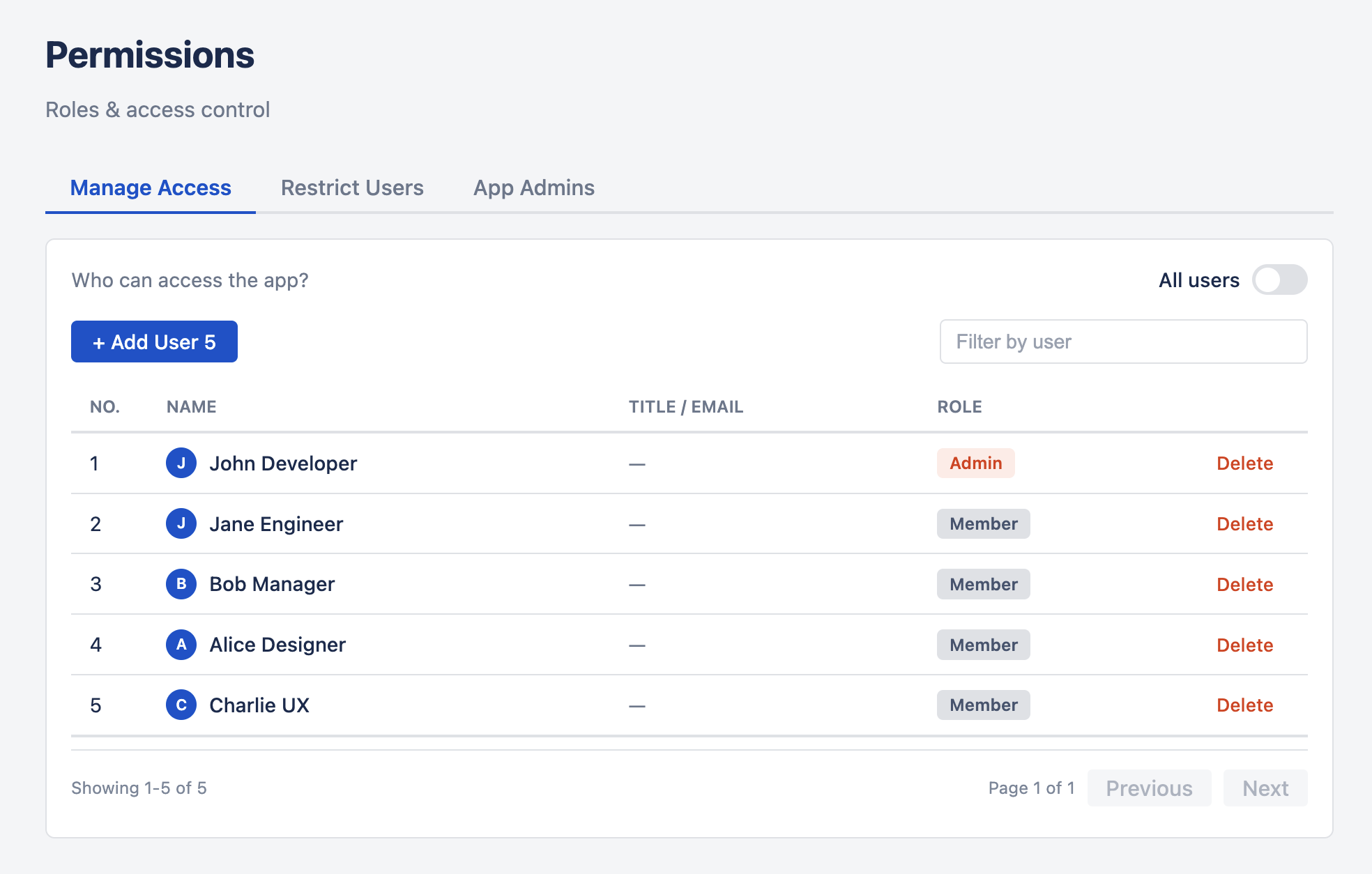
The "Who can open the app" gate. When "All Users" is ON, every user in your Jira site can open WorkHub. Turn it OFF to restrict access to the curated list shown below the toggle.
The list accepts either individual users or Jira groups. Adding a Jira group grants access to every current and future member of that group — you don't have to update WorkHub when someone joins or leaves the group in Jira (changes propagate within the 15-minute group-membership cache).
App Admins, Team Managers, and Org-wide roles configured in the other sub-tabs always keep their access regardless of this toggle — turn it off only when you want to restrict basic access to a specific allow-list.
App Admins
List of App Admins. Click Add Admin, pick a user; they become an admin immediately. The last App Admin cannot be removed.
Team Managers
Map a user to one or more teams. They become a Team Manager of those teams — they approve leaves and timesheets, edit allocations, and drag issues for members of those teams.
The list is paginated and filterable by subject and by team. Use this tab when someone needs to manage one or two teams without org-wide rights.
Org-wide Access
Two lists in one tab: Org Managers (act on everyone) and Org Viewers (see everyone, no actions). Pick the one that matches the intent.
Read-Only Users
Toggle the read-only flag on a user. They keep their existing visibility (whatever their role grants) but every write button is disabled. App Admins always bypass the flag.
Advanced Access
Per-user and per-team Approver or Viewer rules. Use this when none of the broader roles fit — e.g. a single contractor whose timesheets one specific person approves, or an HR contact who should read one team's data without acting.
A rule reads as "for users matching Source, the Approver/Viewer is Target." Source can be:
- All users — everyone in your Jira site.
- A team — every member of the named team.
- One specific person — via Per-User Assignments (highest precedence).
Approver rules cover both timesheets and leaves; the per-feature split was retired. Viewers see the same surfaces as Approvers but cannot act.
Jira Groups as Subjects Back to top
The Manage Access list and the Read-Only flag both accept a Jira group as the subject. Group assignments mean "every current and future member of this group inherits the permission" — you don't have to update WorkHub when someone joins or leaves the group in Jira (changes propagate within the 15-minute group-membership cache).
- Manage Access (app access list) — user or group.
- Read-Only flag — user or group.
- App Admin — user only (admin grants are kept explicit and auditable).
- Team Manager — user only.
- Org Manager / Org Viewer — user only.
- Advanced Access (Approver / Viewer) — user only.
Worked Examples Back to top
Compliance auditor
Add them as an Org Viewer. They can browse every scheduler row, timesheet, leave, and report — entirely read-only.
PM approving one specific external contractor
Add an Advanced Access Per-User Assignment: source = the contractor, target = the PM, type = Approver. The PM doesn't need to manage a team or hold any org-wide role.
Temporary delegation while a Team Manager is on leave
Add a second Team Manager to that team. Both can approve until the original returns. Remove the temporary one when they're back.
Engineer rotates off a team
Remove them from the team's member list under Settings → Teams. Their former teammates stop seeing them on the Scheduler and leave list on the next page navigation.
Offboarding a user without removing their Jira access
Add them to Read-Only Users. They retain their visibility but can no longer log time, request leave, edit allocations, or approve anything. Lift the flag if they return.
Adding a new manager
Settings → Permissions → Team Managers → Add Team Manager, pick the user, check the teams they manage. Done — they immediately become the default approver for those teams' submissions.
Need Help?
If you have questions or need assistance, our support team is here to help.
Contact Support