Overview Back to top
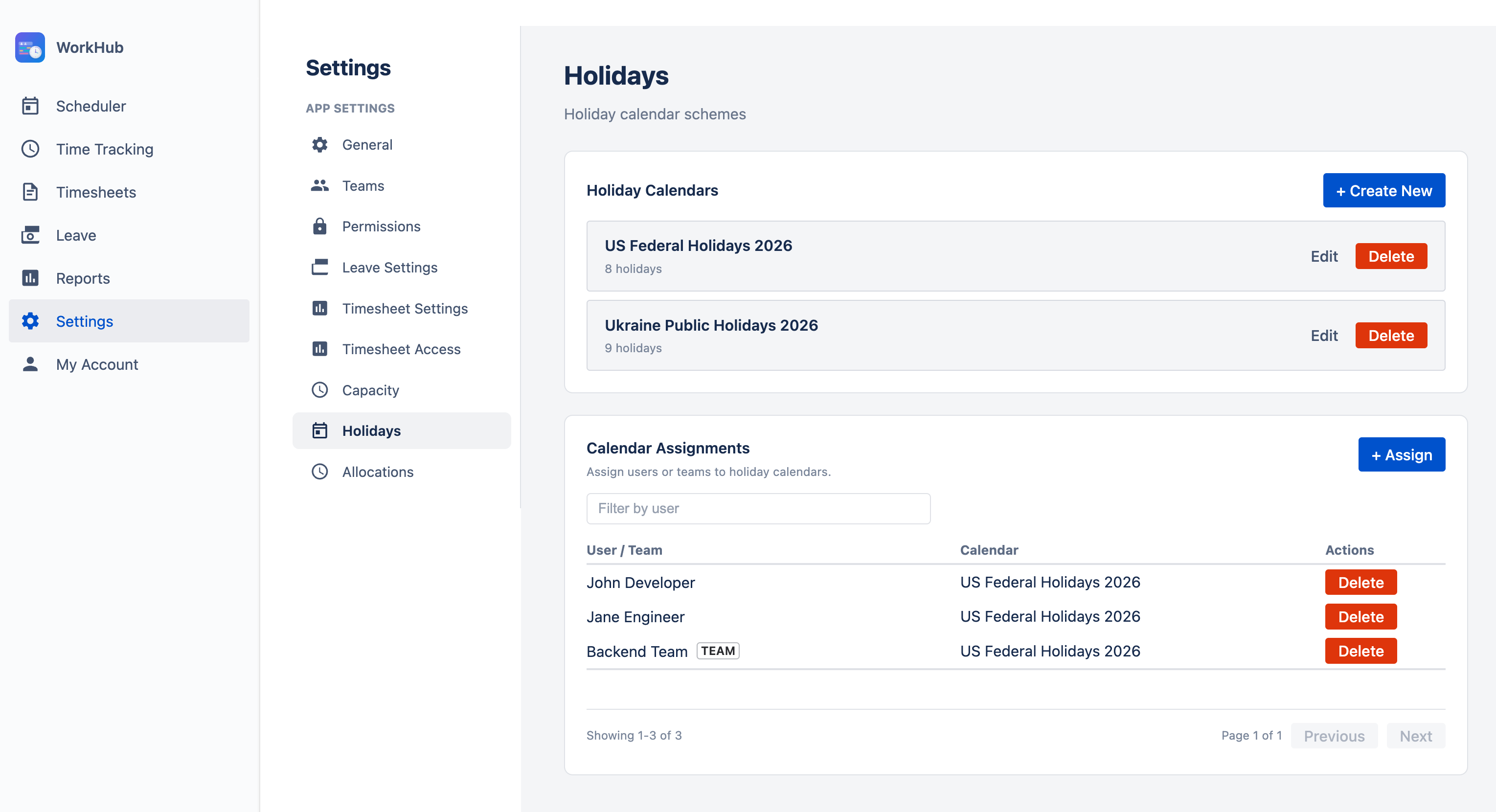
Holiday calendars let you define non-working days — public holidays, company-wide days off, or regional observances — so that the scheduler accurately reflects when your team is unavailable. On a holiday, a user's capacity is automatically reduced to 0 hours, preventing over-allocation on days when no one is expected to work.
Key Capabilities
- Multiple calendars: Create separate calendars for different regions, offices, or teams
- Custom holidays: Add public holidays or company-specific days off (e.g., national holidays, company anniversary, team building day)
- Per-user assignment: Assign each user to the calendar that matches their location
- Default calendar: Set a fallback calendar for users without an explicit assignment
Creating a Holiday Calendar Back to top
To create a new holiday calendar, navigate to Settings (admin only) > Holidays and click "Create Calendar".
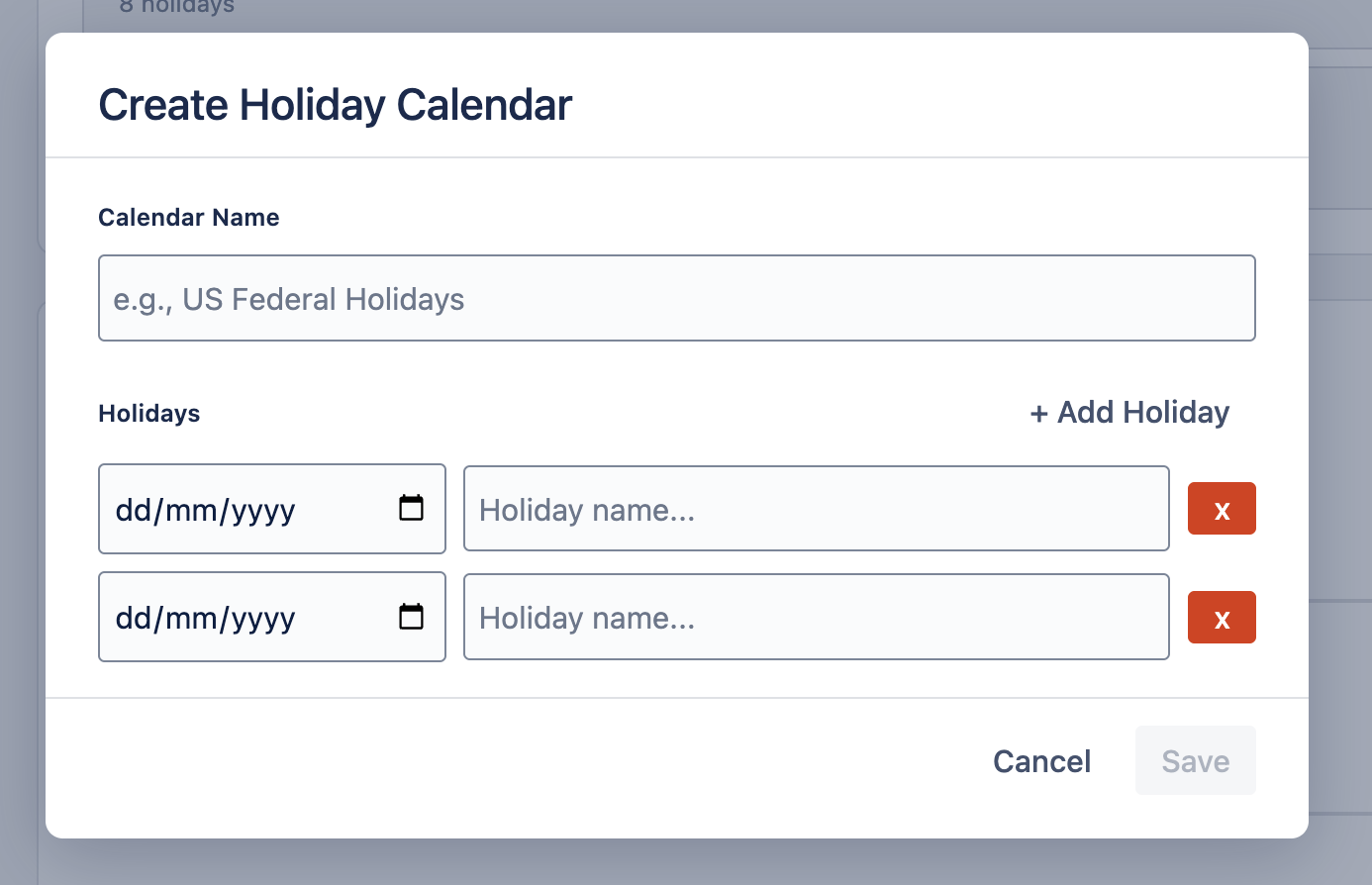
- Enter a name for the calendar (e.g., "US Federal Holidays 2026", "UK Bank Holidays 2026", "Company Days Off").
- Add a description (optional) — a brief note about what this calendar covers.
- Add holidays — you can add them manually one by one, or import a country's public holidays (see sections below).
- Click "Save" to create the calendar. It is now available for user assignment.
Importing Holidays by Country Back to top
Inside the Create / Edit Calendar dialog, the Country field lets you bulk-import public holidays for a specific country instead of typing each holiday by hand.
- Pick a country from the dropdown (over 100 countries supported).
- Click "Apply" — public holidays for the current year and the next year are added to the holiday list.
- Review and customize the imported list — you can still rename, edit, or remove individual entries before saving.
- Click "Save" to persist the calendar.
Customizing Holidays Back to top
After importing or creating holidays, you can customize the calendar to match your organization's specific needs:
- Add a holiday — Click "Add Holiday" and enter a name and date. Use this for company-specific days off that are not part of any country's public holidays (e.g., "Company Anniversary", "Summer Friday").
- Remove a holiday — Click the delete icon next to any holiday to remove it. This is useful when your company observes most but not all of a country's public holidays.
- Edit a holiday — Change the name or date of an existing holiday. For example, if your company observes a substitute day instead of the official date.
Assigning Users to Calendars Back to top
Each user can be assigned to exactly one holiday calendar. This determines which holidays reduce their capacity on the scheduler.
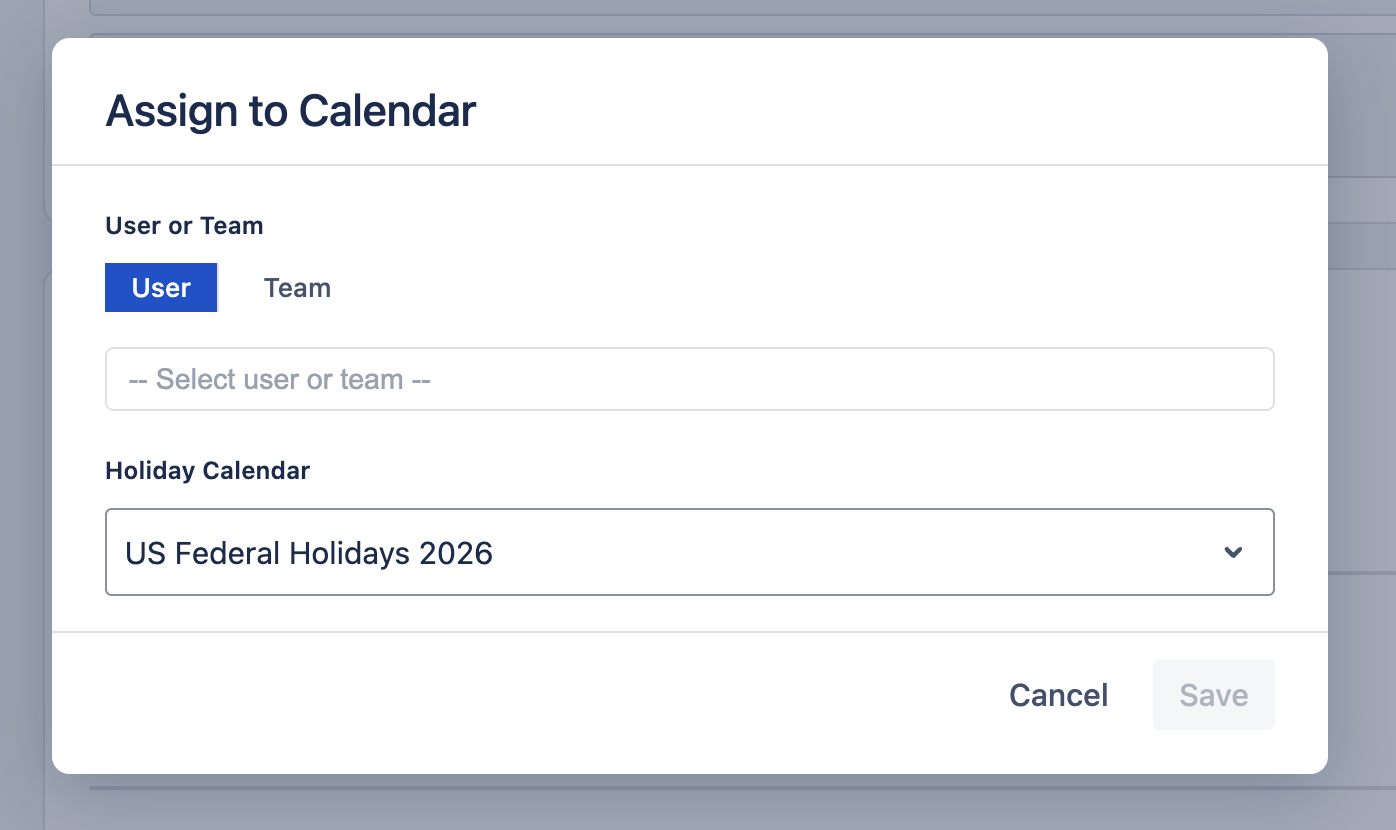
- Open Settings > Holidays and select the calendar.
- Click "Assign Users" to open the user picker.
- Search for a user by name — type at least 2 characters to see results. The picker supports large organizations with debounced search.
- Tick the users you want in the dropdown. The list stays open so you can select several people at once; already-selected users show a checked box. Click Save to assign the calendar to everyone you ticked.
If a user is reassigned to a different calendar, their previous assignment is replaced. Users can view their assigned holiday calendar on the My Account page.
Multi-Region Teams
For teams spread across multiple countries or regions, create a separate calendar for each location (e.g., "US Holidays", "UK Holidays", "India Holidays") and assign each user to their local calendar. The scheduler will show accurate capacity for each person based on their specific holidays.
Setting a Default Calendar Back to top
You can designate one calendar as the default. Any user who has not been explicitly assigned to a calendar will automatically use the default. This is useful when most of your team is in the same location.
To set a default calendar:
- Open Settings > Holidays.
- Find the calendar you want to use as the default.
- Click "Set as Default" (or the star icon). The calendar is now the fallback for all unassigned users.
How Holidays Reduce Capacity Back to top
When a date falls on a holiday in a user's assigned calendar, the user's available capacity for that day is set to 0 hours, regardless of their capacity scheme. This means:
- The workload indicator on the scheduler shows no available hours for that day
- Any work scheduled on a holiday will be flagged as over-allocation (red indicator)
- Utilization reports exclude holiday days from available capacity calculations
- Workload distribution skips holidays when spreading estimated hours across a date range
Example: Capacity Reduction
A user with the Standard Full-Time scheme (8h Mon–Fri) has a US holiday calendar assigned. On Monday, July 4th (Independence Day):
- Normal capacity: 8 hours
- Holiday reduction: −8 hours
- Available capacity: 0 hours
If 4 hours of work are scheduled on that day, the workload indicator shows red (over-allocated), because 4h scheduled ÷ 0h available = over 100% utilization.
Holidays work alongside leave and capacity schemes to give you a complete picture of each team member's true availability.
Need Help?
If you have questions or need assistance with holiday calendars, our support team is here to help.
Contact Support