Create Bulk Allocation Back to top
Bulk allocation lets you create identical bookings for multiple users at once — same work target, same date range, and same (or individually adjusted) hours per day. This is ideal for assigning an entire team to a project or sprint.
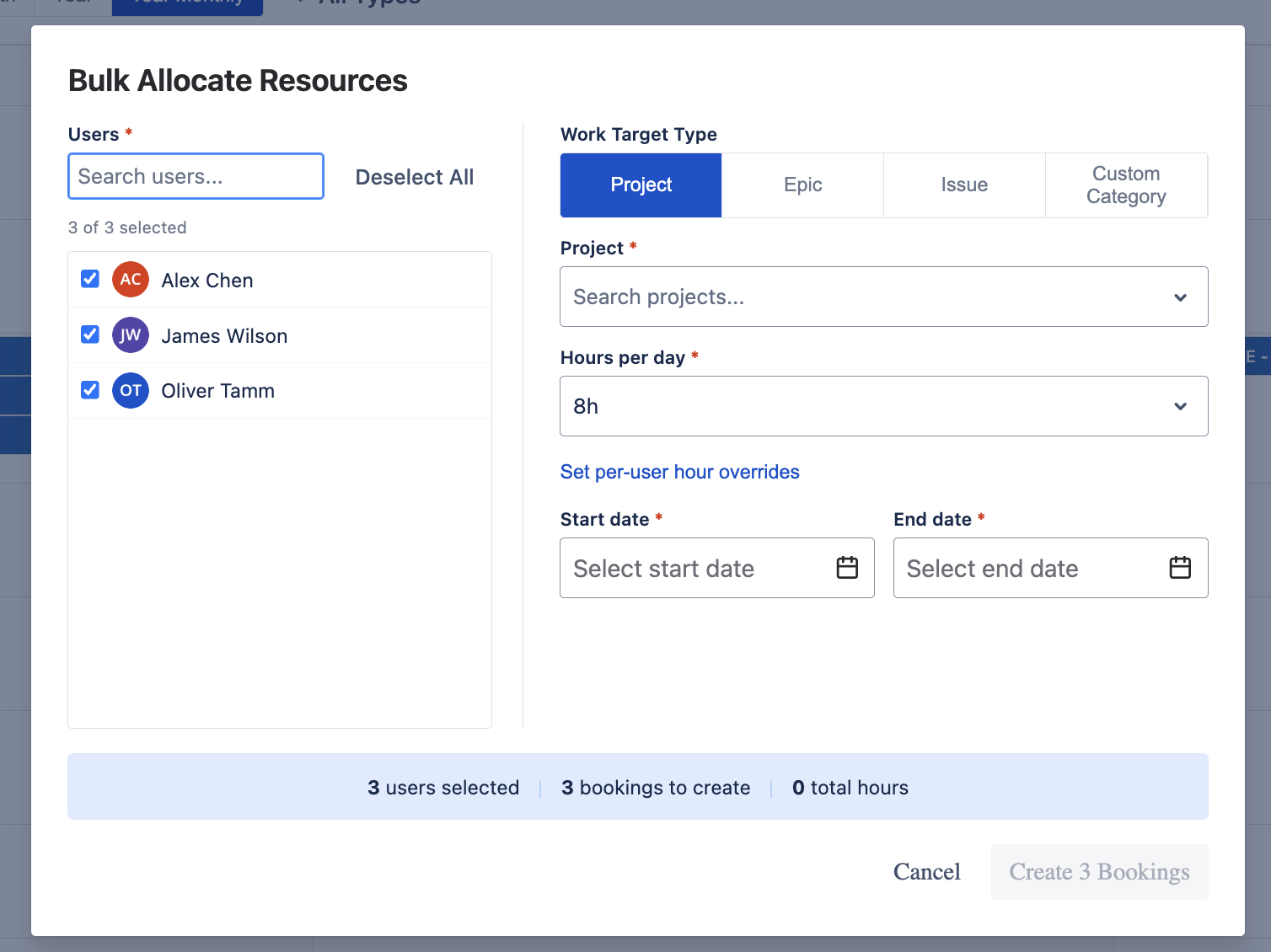
- Click "Bulk Allocate" in the toolbar.
- Select Users — use the searchable user list on the left. Check individual users or click "Select All" / "Deselect All" to toggle the entire list. Users from the active team are pre-selected.
- Choose a Work Target Type — select Project, Epic, Issue, or Custom Category using the tabbed interface on the right.
- Select the Work Target — search and pick the specific project, epic, issue, or category.
- Set Hours per day — the shared value applies to all selected users by default. Use "Set per-user hour overrides" to customize individual allocations.
- Set Start and End dates — the shared date range for all bookings.
- Click "Create N Bookings" to create one independent booking per selected user.
Per-User Hour Overrides Back to top
While the shared "Hours per day" value applies to all selected users, you can override this for individual team members.
- Click "Set per-user hour overrides" below the Hours per day field.
- Adjust hours for individual users. Each user gets their own hours-per-day dropdown.
- Users without an override use the shared value.
Independent Bookings
Bulk allocation creates independent bookings per user. After creation, each booking can be edited, moved, or deleted individually without affecting the others.
Summary Bar Back to top
The summary bar at the bottom of the Bulk Allocation dialog provides a real-time overview of the operation:
- Users selected — number of users who will receive bookings
- Bookings to create — total number of bookings that will be created (one per user)
- Total hours — sum of all hours across all bookings (calculated from hours per day × number of days × number of users)
The summary updates live as you change the selection, hours, or date range, so you can verify the allocation before confirming.
Need Help?
If you have questions or need assistance, our support team is here to help.
Contact Support