What is an ICS Feed? Back to top
ICS (iCalendar) is a standard format for sharing calendar data. When you generate an ICS feed URL for a Jira calendar, external calendar apps like Google Calendar, Outlook, and Apple Calendar can subscribe to it. They periodically fetch updates from the URL, keeping your external calendar in sync with Jira.
This is a one-way export — changes in Jira appear in your external calendar, but changes in the external calendar do not flow back to Jira.
Prerequisites Back to top
Before you can generate an ICS feed URL, ensure the following requirements are met:
- A Jira administrator must enable ICS export: Admin Settings → Export Settings → General Settings → "Enable ICS export" toggle
- You must have Admin permission on the calendar you want to export
- Export must not be disabled for the specific calendar (Permissions tab → "Disable export" checkbox must be unchecked)
If you cannot change the filter's sharing, the Export Settings panel will detect the issue and offer a "Convert filter to JQL" action — it copies the filter's JQL into the calendar source so the export runs against the JQL directly. After conversion, edits made to the original filter in Jira will no longer be reflected in the calendar; update the calendar's JQL manually if the filter changes.
How to Generate an ICS Feed URL Back to top
- Find the calendar you want to export in the left sidebar
- Click the edit icon (pencil) next to the calendar name
- Select "Export Settings" from the dropdown menu
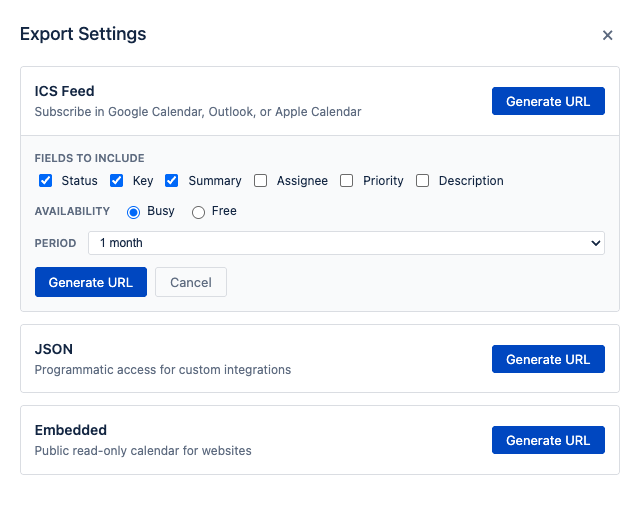
- The Export Settings panel opens, showing three format cards: ICS Feed, JSON, and Embedded
- On the ICS Feed card, click "Generate URL" to expand the card and reveal configuration options. No URL is created at this step — the button simply opens the settings panel.
- Configure the feed settings:
- Fields to include — checkboxes for: Status, Key, Summary, Assignee, Priority, Description
- Availability — Busy or Free (radio buttons)
- Period — dropdown: 1 month, 3 months, 6 months, 1 year, 2 years
- After configuring the options above, click "Generate URL" to create the feed. This second click generates the actual ICS feed URL using your chosen settings.
- The URL appears — click "Copy" to copy it to your clipboard
Configuration Options Back to top
Fields to Include
Select which event data appears in the ICS feed. Each checked field is included in the event description that subscribers see. Default: Status, Key, and Summary are checked.
| Field | Description |
|---|---|
| Status | Jira issue status (e.g., To Do, In Progress, Done) |
| Key | Jira issue key (e.g., PROJ-123) |
| Summary | Issue summary / event title |
| Assignee | Person assigned to the issue |
| Priority | Issue priority level (e.g., High, Medium, Low) |
| Description | Full issue description or custom event description |
Availability
Controls how events appear in your external calendar's free/busy view.
- Busy (default) — blocks the time slot in your external calendar. Other people checking your availability will see you as unavailable during these events.
- Free — shows events without blocking time. Useful for informational calendars where you want to see Jira events but don't want them to affect your availability.
Period
Controls the date range included in the feed. The feed always includes 3 months of past events. The future period is configurable:
| Option | Future Range | Notes |
|---|---|---|
| 1 month | 1 month ahead | Default. Matches Jira Data Center behavior. Fastest sync. |
| 3 months | 3 months ahead | Good for quarterly planning |
| 6 months | 6 months ahead | Covers half-year roadmaps |
| 1 year | 12 months ahead | Full annual view |
| 2 years | 24 months ahead | Maximum range. More data per sync. |
Subscribe in Google Calendar
- Copy the ICS feed URL from Export Settings
- Open Google Calendar (calendar.google.com)
- In the left sidebar, click the + next to "Other calendars"
- Select "From URL"
- Paste the ICS feed URL
- Click "Add calendar"
- Events from Jira will appear within a few minutes. Google Calendar refreshes subscriptions every 12-24 hours.
Subscribe in Outlook / Office 365
- Copy the ICS feed URL from Export Settings
- Open Outlook web (outlook.com or Office 365)
- Click "Add calendar" in the left sidebar
- Select "Subscribe from web"
- Paste the ICS feed URL
- Enter a name for the calendar (e.g., "Jira - Team Calendar")
- Click "Import"
Subscribe in Apple Calendar
- Copy the ICS feed URL from Export Settings
- Open Apple Calendar
- Go to File → New Calendar Subscription (or press ⌥⌘S)
- Paste the URL and click Subscribe
- Configure the auto-refresh interval (e.g., every 5 minutes, every day)
- Click OK
Managing Feed URLs Back to top
Once you have generated an ICS feed URL, you can manage it from the same Export Settings panel:
- Regenerate — creates a new URL with a fresh authentication token. The old URL immediately stops working. Use this if a URL has been compromised or shared with the wrong person.
- Delete — permanently removes the export configuration. The URL stops working and cannot be recovered. You would need to generate a completely new feed.
- Active feeds — active feed URLs can be monitored by administrators in Admin Settings → Export Settings → Active Exports tab. This shows who created each feed, when it was last accessed, and allows administrators to deactivate feeds.
URL Parameters Back to top
The generated URL includes several parameters that can be adjusted manually if needed:
| Parameter | Values | Description |
|---|---|---|
token |
<uuid> |
Authentication token. Do not share publicly. |
period |
1m, 3m, 6m, 1y, 2y |
Override the date range for future events |
availability |
BUSY, FREE |
Override the free/busy setting |
timezone |
<IANA timezone> |
Override the timezone (e.g., Europe/Amsterdam, America/New_York) |
Security Considerations Back to top
ICS feed URLs provide unauthenticated access to calendar data. Keep these security practices in mind:
- Treat feed URLs like passwords — they contain a secret token that grants access without a Jira login. Anyone with the URL can read the calendar data.
- Do not share URLs publicly — never post feed URLs in public channels, wikis, or documentation that unauthorized users can access.
- Rotate tokens periodically — use the Regenerate function to create a new URL and invalidate the old one. This limits the window of exposure if a URL is leaked.
- Administrator monitoring — Jira administrators can monitor all active feeds in Admin Settings → Active Exports. They can see when feeds were created, last accessed, and can deactivate any feed.
- IP allowlist — administrators can restrict which IP addresses or network ranges (CIDR notation) are allowed to access feed URLs. Requests from other IPs will be rejected.
Need Help?
If you have questions about ICS feed configuration or subscribing in external calendars, contact our support team.
Contact Support