Event Types Back to top
Event types let you categorize custom events. Each calendar can have its own set of event types with custom names, icons, and default reminders.
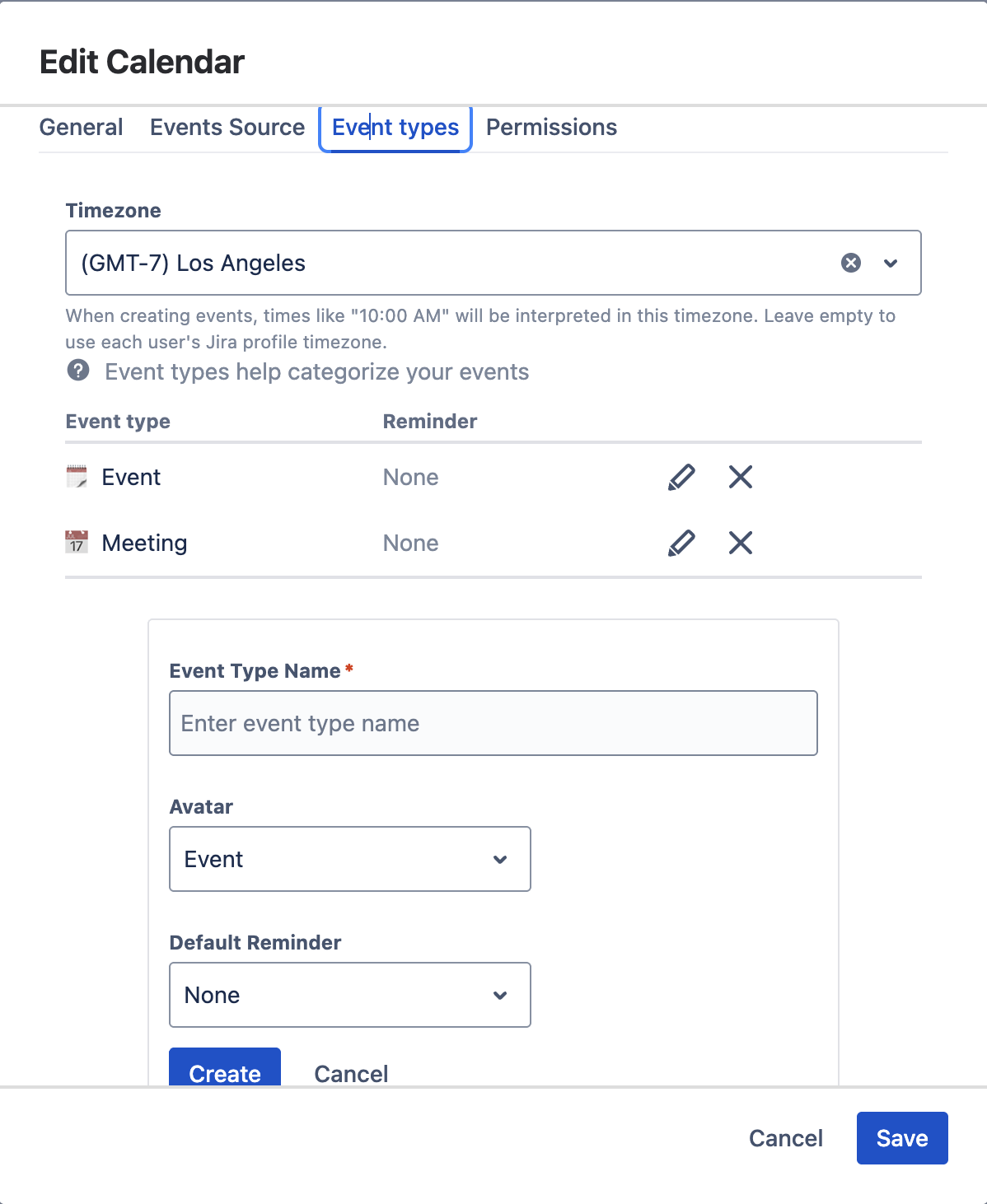
To configure event types, open the calendar settings dialog and navigate to the Event Types tab:
- Click the edit icon (pencil) next to the calendar name in the sidebar.
- Select "Edit" to open the calendar settings dialog.
- Navigate to the "Event types" tab.
-
Click "+ Create" to add a new event type. Configure:
- Event Type Name — e.g. "Meeting", "Deadline", "Milestone"
- Avatar — choose an icon from the dropdown
- Default Reminder — set an optional default reminder
- Click "Create" to save the event type.
Create Custom Events Back to top
Custom events are standalone events not tied to Jira issues. Double-click on any day cell in the calendar to open the event creation dialog.
- Double-click on a day cell in the calendar to open the event creation dialog.
- Select the calendar where the event should be created.
- Choose an event type from your configured types (see Event Types above).
- Enter a name for the event.
- Toggle "All Day" — Enable for full-day events or disable to set specific start and end times.
- Set start and end dates (and times if not an all-day event).
- Add a description (optional) — Use the rich text editor to add details.
- Add participants (optional) — Search and select Jira users.
-
Set a reminder (optional) — Choose from preset intervals:
- 10 minutes before
- 15 minutes before
- 30 minutes before
- 1 hour before
- Add a link (optional) — Attach an external URL to the event.
Link Jira Issues
Search by issue key or summary to connect Jira issues to this event. Linked issues appear in the Issue Panel on those Jira issues.
Click "Add" to create the event.
Recurring Events Back to top
You can set events to repeat on a schedule.
- Create a new event or edit an existing event using the event dialog.
- Click the "Repeat" dropdown in the event form.
- Select a recurrence pattern: Daily, Weekly, Monthly, or Yearly.
- Configure the repeat interval — e.g., every 2 weeks, every 1st Monday.
- Click Save to apply the recurrence.
Editing & Deleting Recurring Events
When you edit or delete a recurring event, you can choose the scope of the change:
- This event only — Changes apply to this single occurrence
- This and following events — Changes apply to this and all future occurrences
Reminders Back to top
Calendar for Jira sends Jira notifications to event participants before an event starts. Reminders work at two levels: default reminders per event type and per-event overrides.
Default Reminders (per Event Type)
Each event type can have a default reminder configured. When you create a new event of that type, it automatically inherits the default reminder. This saves time when most events of a given type need the same reminder.
- Open the calendar settings (edit icon → Edit → Event Types tab).
- Click on an event type or create a new one.
- Set the Default Reminder dropdown to one of the available intervals.
- All new events created with this type will automatically have this reminder set.
Per-Event Reminders
When creating or editing a custom event, you can set a reminder that overrides the event type's default. Choose from these intervals:
- 10 minutes before the event
- 15 minutes before the event
- 30 minutes before the event
- 1 hour before the event
How Reminders Work
When a reminder is set, the system pre-calculates the exact notification time (event start minus the reminder interval). A background process checks for pending reminders every few minutes and sends Jira notifications to all event participants.
Reminder Notifications
Notifications are delivered through Jira's built-in notification system. Each notification includes:
- The event title and type
- Start time (formatted in the calendar's configured timezone)
- A direct link to the calendar view on the event's date — clicking the link opens the calendar in day view and highlights the event
Recurring Event Reminders
For recurring events, reminders are sent before each occurrence. After a reminder is sent for one occurrence, the system automatically calculates and schedules the reminder for the next occurrence. This continues until the recurrence ends (either by end date or occurrence count).
Export to External Calendar Back to top
You can export any custom event to your personal Google Calendar, Outlook, or download it as an ICS file. This is a quick one-click action to add a specific meeting, deadline, or milestone to your external calendar.
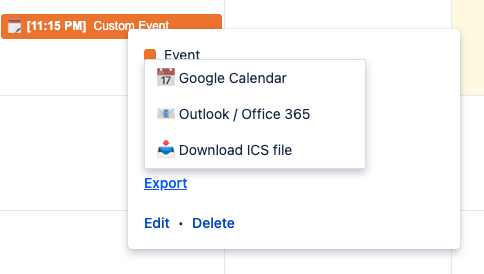
How to export a custom event
- Click on a custom event on the calendar to open the event popup.
- Click the Export button at the bottom of the popup.
- A dropdown appears with three options:
- Google Calendar — opens Google Calendar in a new tab with the event details (title, dates, description) pre-filled. Click "Save" to add it to your Google Calendar.
- Outlook / Office 365 — opens Outlook web with the event details pre-filled.
- Download ICS file — downloads a
.icsfile that you can import into any calendar application (Apple Calendar, Thunderbird, etc.).
For exporting an entire calendar as a subscription feed (ICS, JSON, or embedded), see Export & Import.
Need Help?
If you have questions or need assistance with custom events, our support team is here to help.
Contact Support